
Quickstart Mobile App
Download Mobile App
iOS
https://apps.apple.com/app/libib/id721908216
Android
https://play.google.com/store/apps/details?id=com.libib.app
1. Add Collection
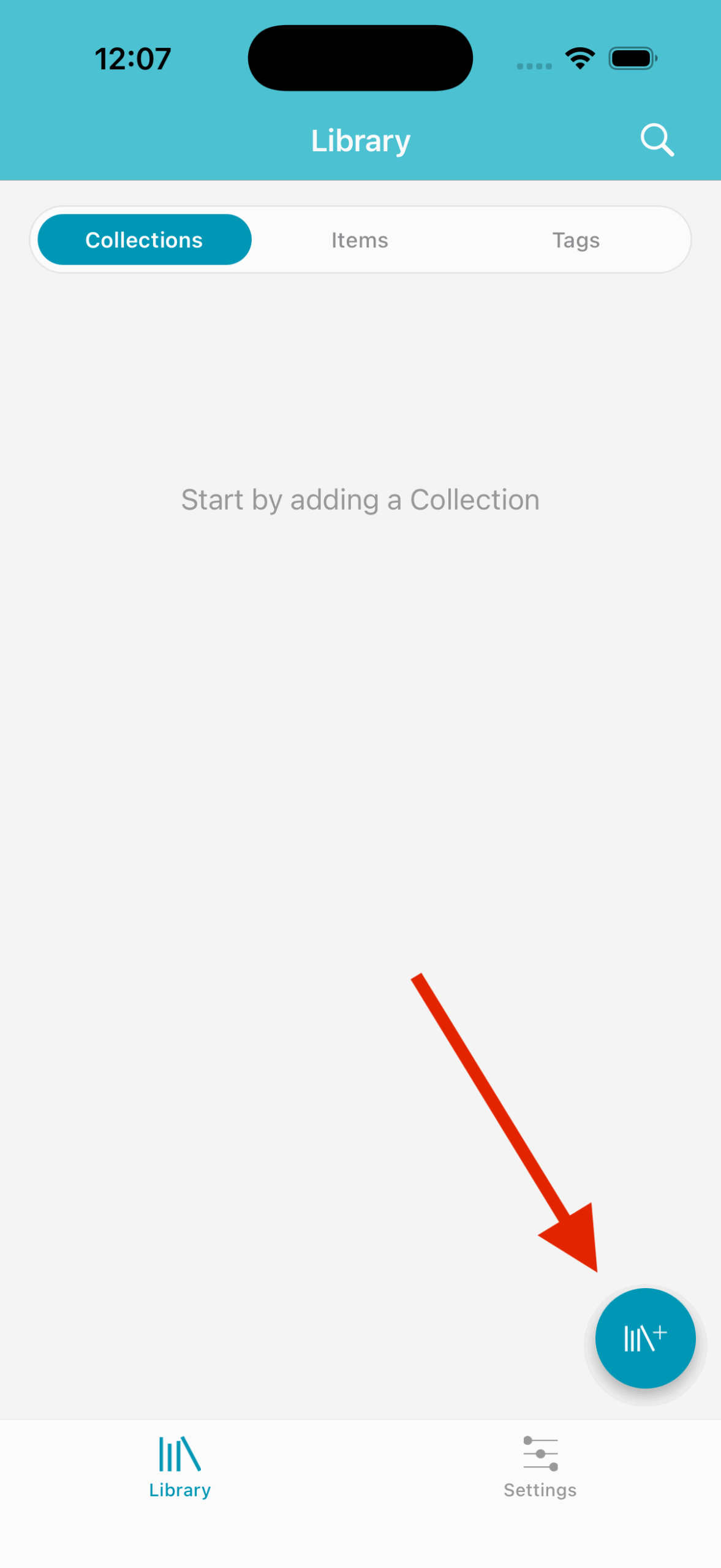
After you've created your account and logged in you'll be greeted with your collections page. First you must create a collection before you can begin adding items.
A collection organizes items based on a physical or logical distinction, such as location or language.
Start by clicking the + icon in the bottom right corner of the Collections tab.
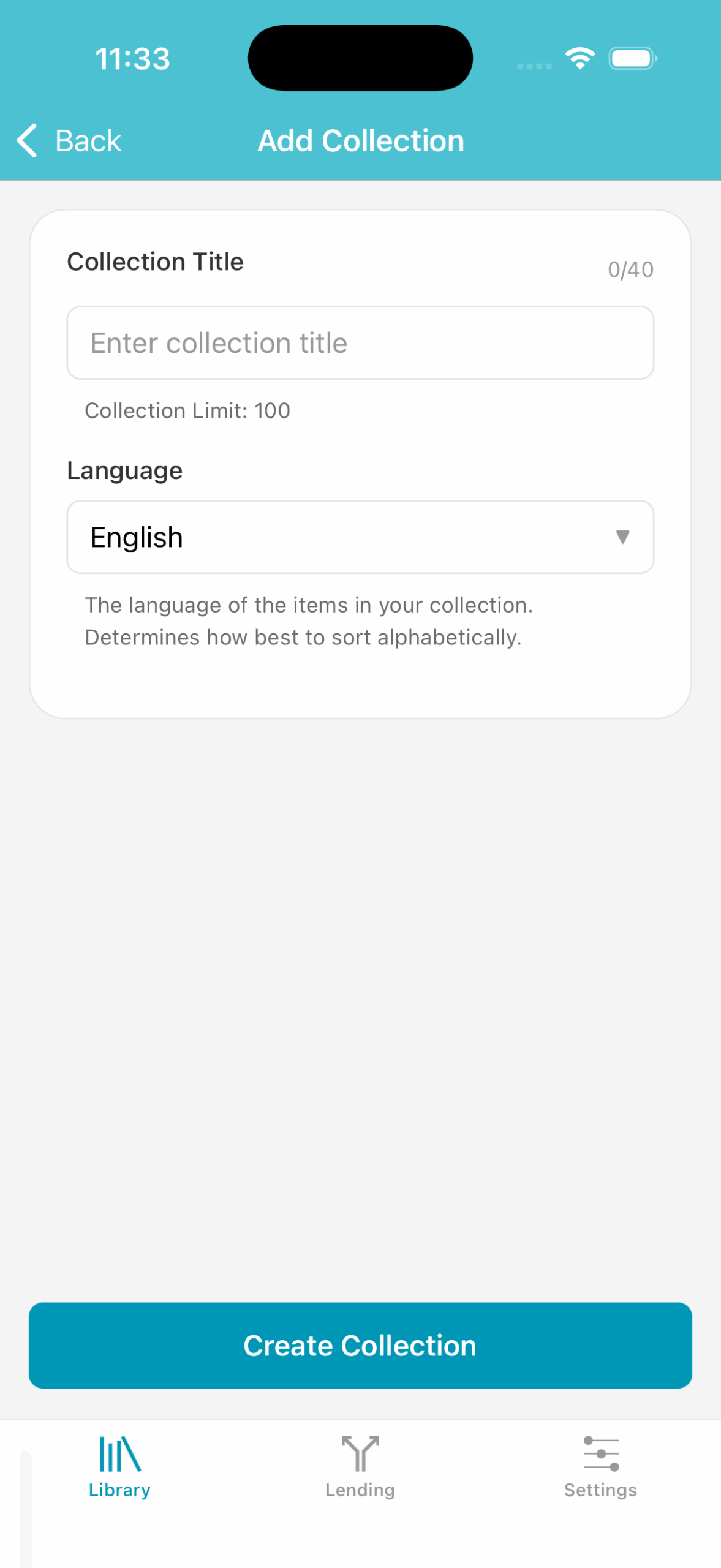
The Add Collection form will appear.
Collection Title: Your collection's name.Language: The language is used to determine how your library should be sorted.
2. Add Items
Now that you've created your first collection you're ready to begin adding items. This is where our fast and accurate scanner comes into good use. Select by tapping your newly created collection and you will enter the Items list.
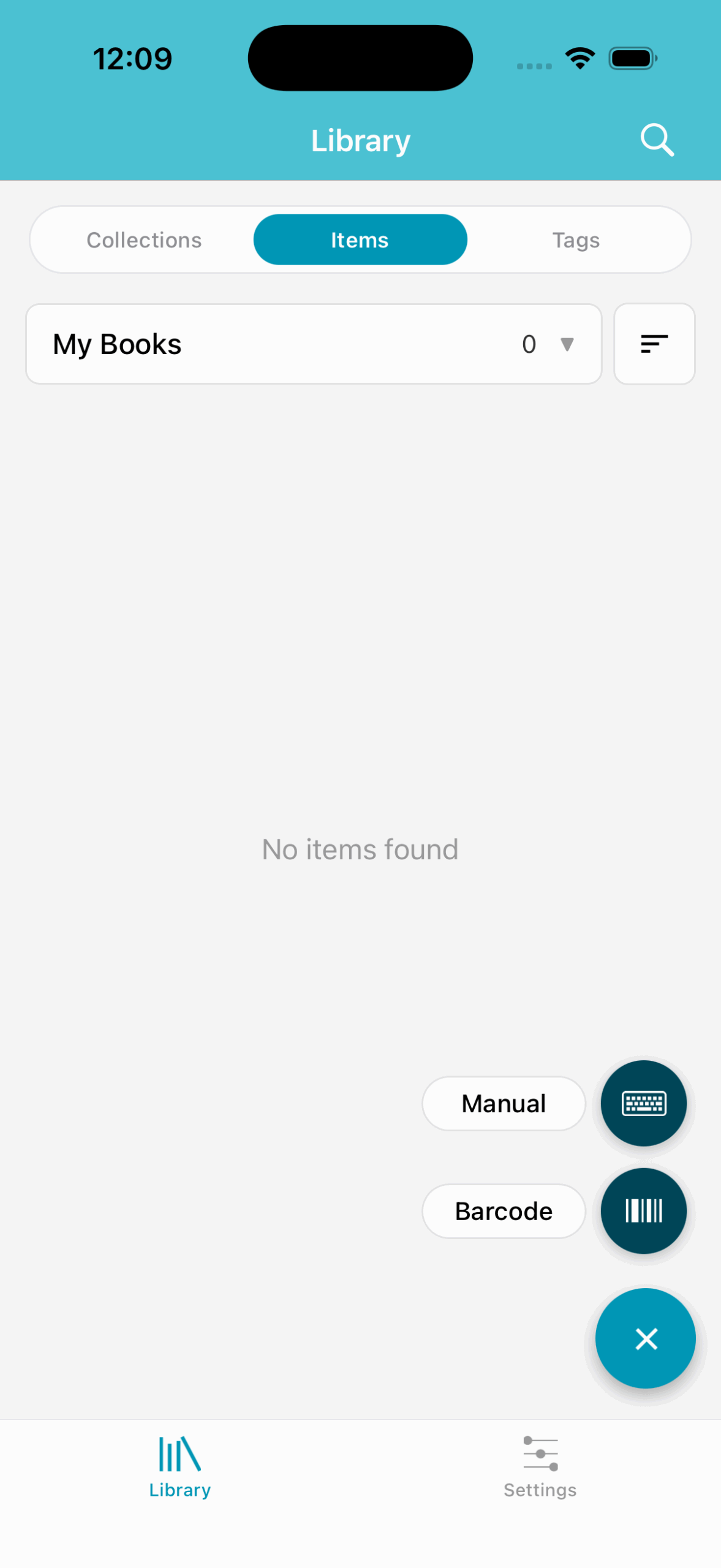
Click the + icon in the bottom right corner right above the tab bar. This will turn it into an x (which will close the dialog when tapped, if you choose to cancel). The dialog will give you two options: Barcode and Manual Entry.
Barcode will bring up media type options. Select the media type you want to add and the barcode scanner will appear, ready to scan. ISBNs/UPCs lookups can also be performed without scanning by entering the barcode number in the input field above the scanner.
Manual Entry will bring up media type options. Select the media type you want to add, and manually enter the data for each field. This can be used for items which cannot be scanned.
Older Books
Books published prior to 2005 may not have an ISBN barcode on the back cover. Look on the inside cover for an ISBN barcode and/or number for older books. If no identifier can be found, use manual entry.
Auto-sync
Our app runs entirely online which allows changes made on the website to be available in-app and vice versa. The Collections page will allow you to pull-to-refresh to force a sync if needed.