
Quickstart for Patrons Pro
If you're a patron of a library that uses Libib and need some help, you've come to the right place.
Library Access
To access a library you'll need to get the URL from your library administrator. The URL will be in a format similar to https://libib.com/u/[alias].
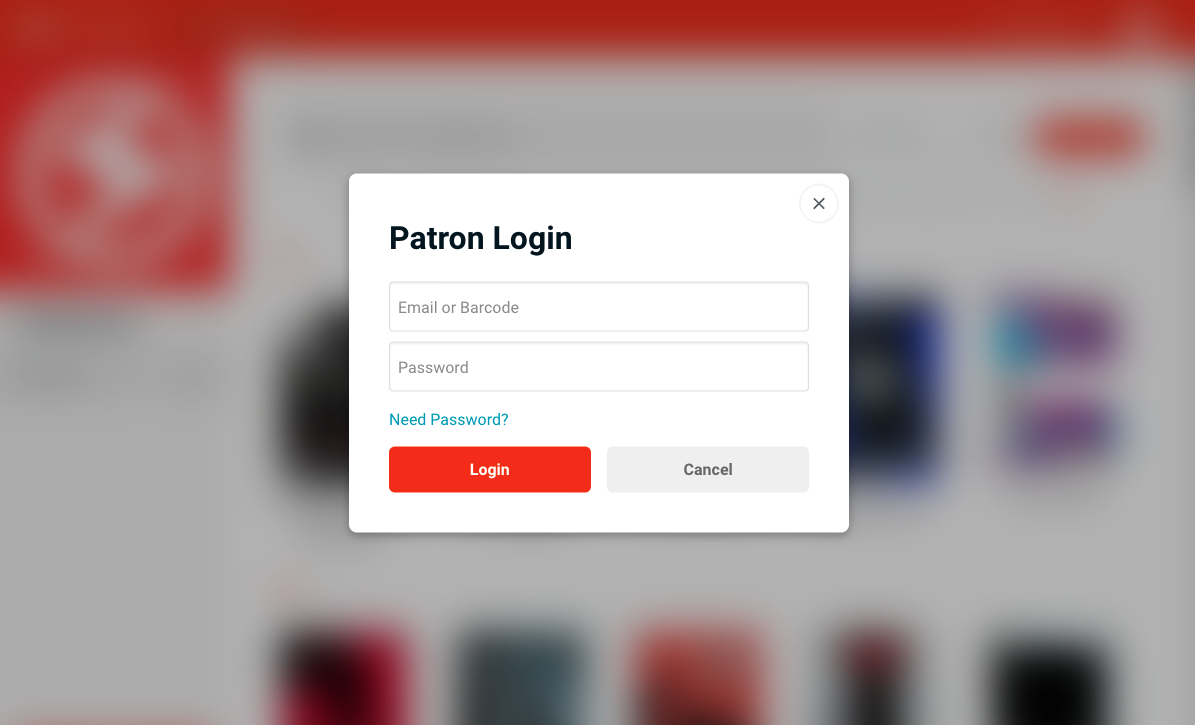
Depending on the site admin's settings you may be required to login using your email or barcode ID and password to browse the library.
Unavailable Features
If you do not see a feature discussed below, it may be disabled. You'll need to reach out to your library admins.
Get a Password
You need a password to use various features of the published site like browsing collections, accessing the patron account page, checking out an item, or placing a hold.
You can get a password by clicking on Need Password? at the bottom of any popup dialogs. This will email you a temp password. If your email is not in the system you can request that your library administrators create an account and set a password for you.
Checkout Items
If you are wanting to check out an item, there are a few options available to you, depending on how your library manager has set up the library. If you are unsure what steps you should take, make sure to reach out to your library manager to see what their recommendation is.
- Have a library manager checkout the item for you.
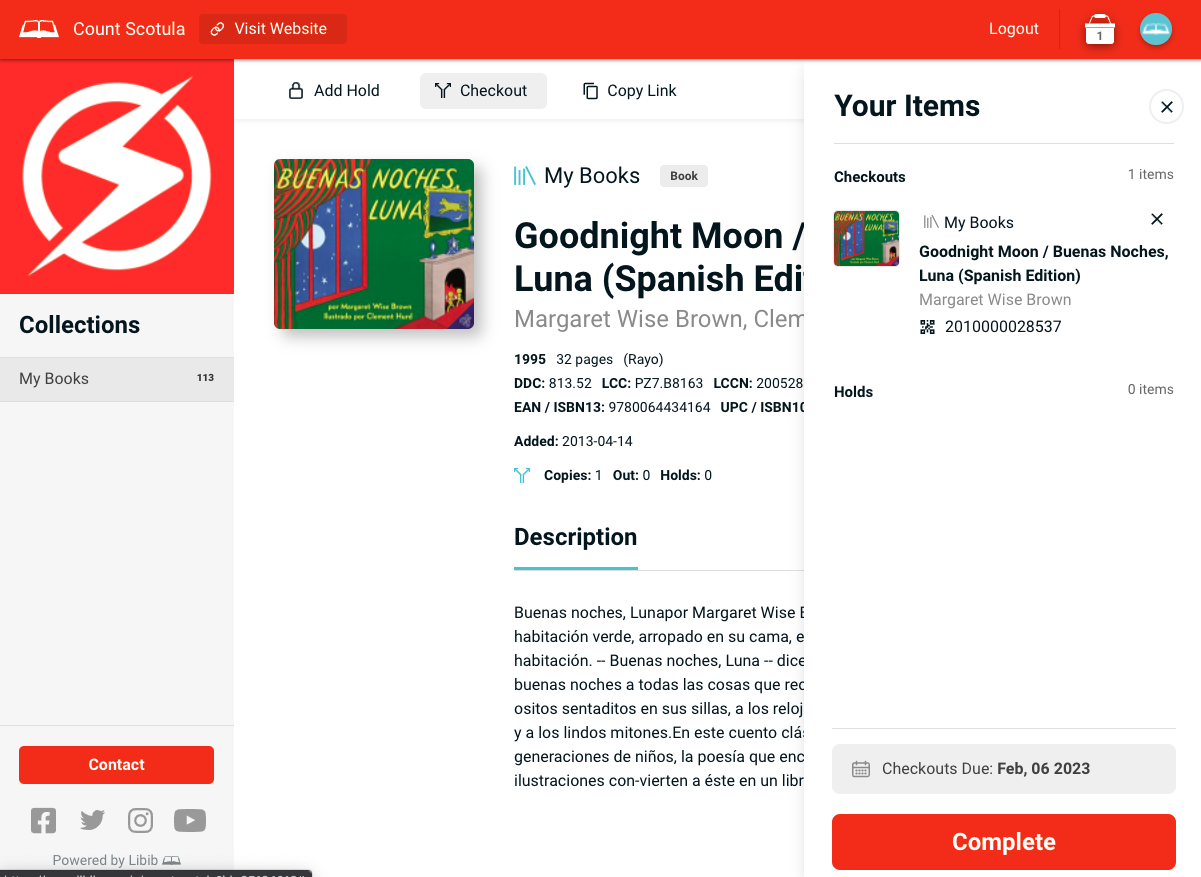
- Use the public library self-checkout option. This is a
Checkoutbutton located within an item's details. If more than one copy of a book is available you'll be required to choose the specific barcode from a popup list. This will place the item in a queue so you can add additional items. Once you've added all your items clickComplete. If you do not see the self-checkout option it may not be enabled and you'll need to reach out to your library admins.
- Checkout items via Kiosk. The Kiosk is a streamlined way to check out items when you are in a physical library location. Your library manager should leave you instructions at the Kiosk as this can be configured in many different ways. The Kiosk may not be available if it was not setup by your library admins.
Place Holds
Holds are a way to reserve items, so that they are placed to the side for the library manager to checkout to you. Your library manager may have guidelines and instructions for how to pickup a held item, please reach out to them for specifics about their process.
- Have a library manager place the hold for you.
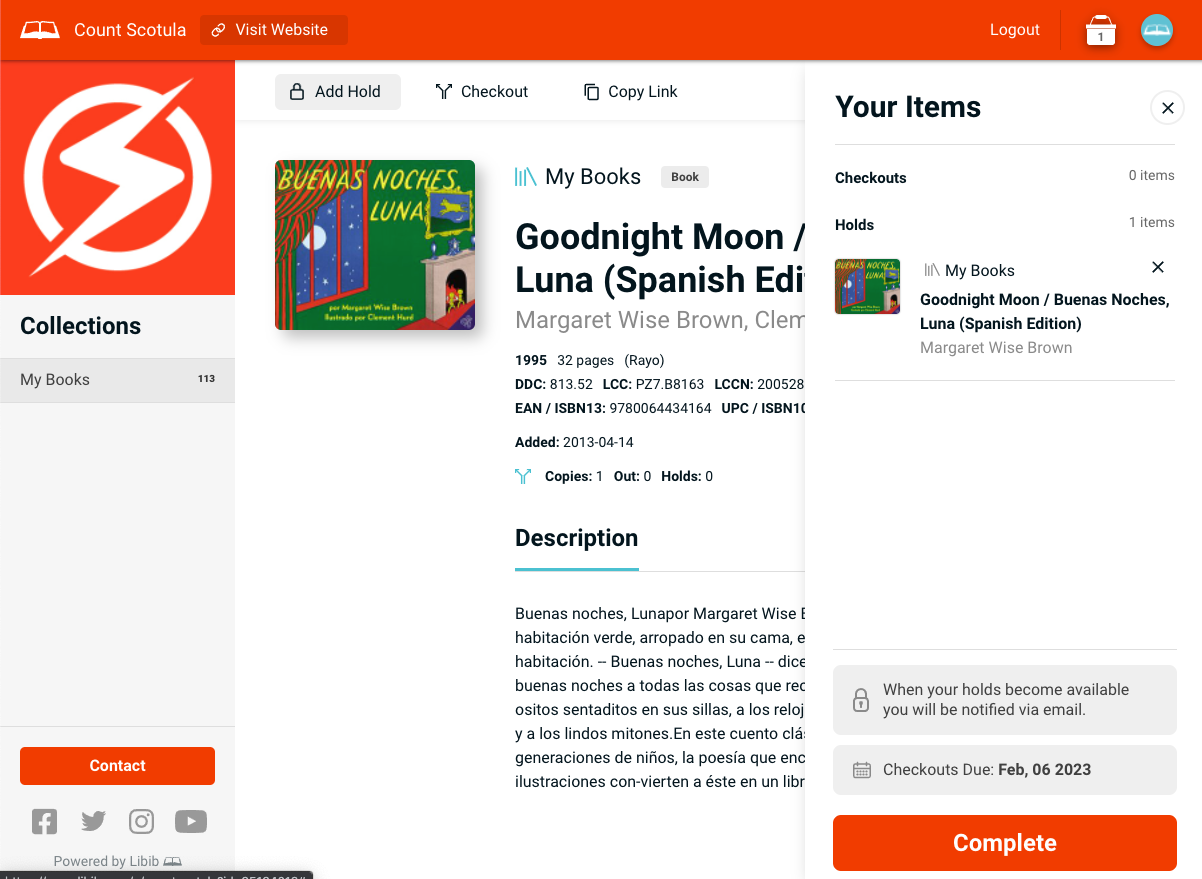
- Use the public library hold option. Simply click the
Add Holdbutton in the item's details. This will add the hold to a queue allowing you to place holds or checkout other books. Once you're ready to complete the process clickComplete. If you do not see the hold option it may not be enabled and you'll need to reach out to your Libib library manager.
Patron Page
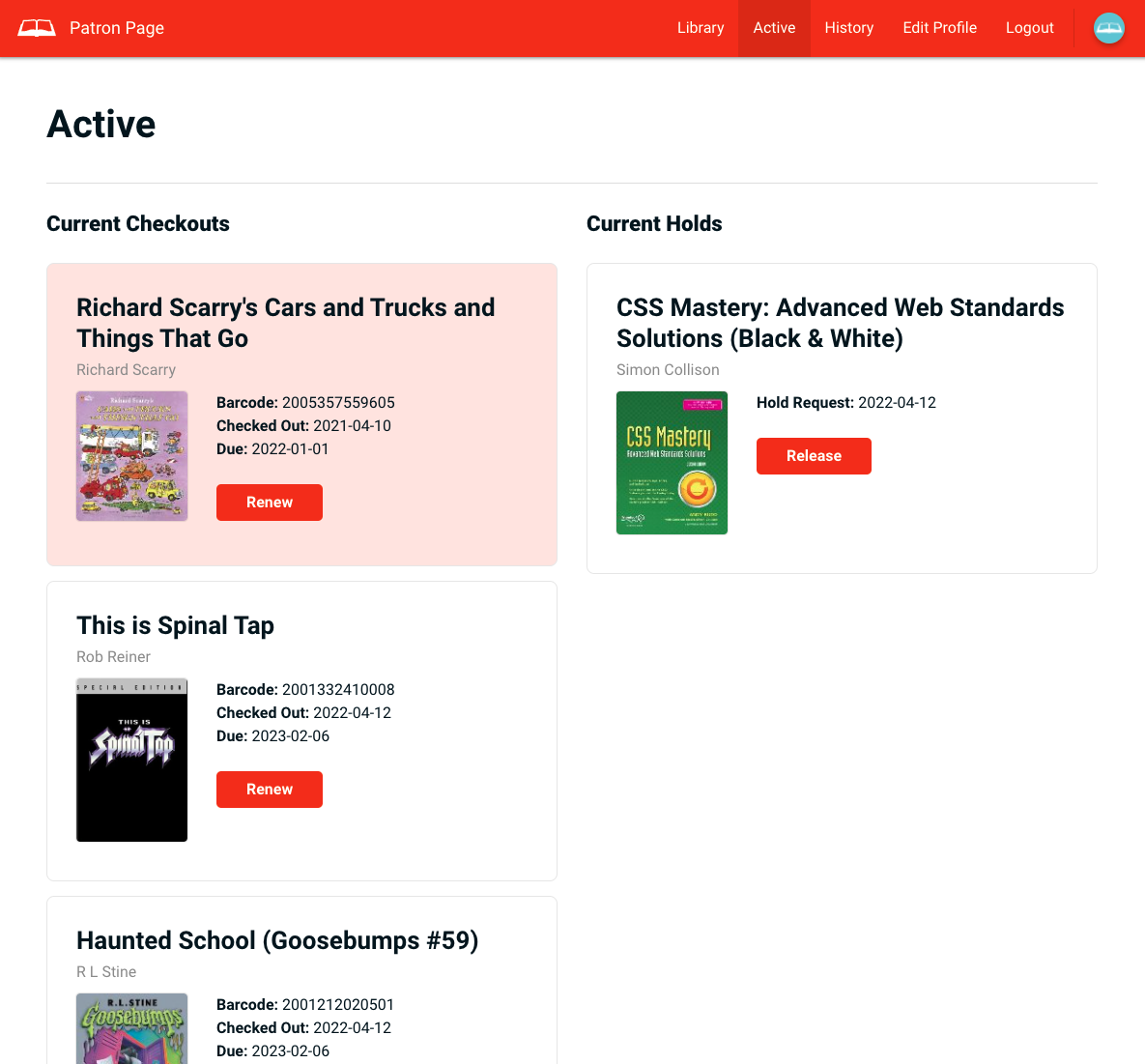
Click Patron Login near the top right of the header bar. This will allow you to see your active checkouts, holds, and past lending history.
Active
A list of all your currently active checkouts and holds.
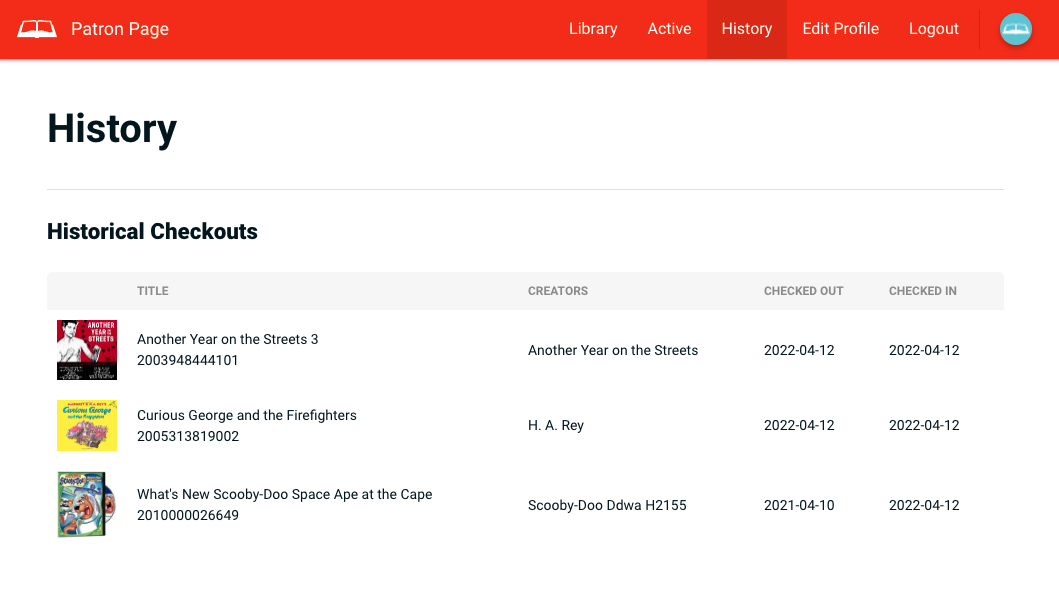
History
An historical list of your previously checked out items.
Edit Profile
This page lets you update your patron information, change your password, and set your notification preferences.