
Items
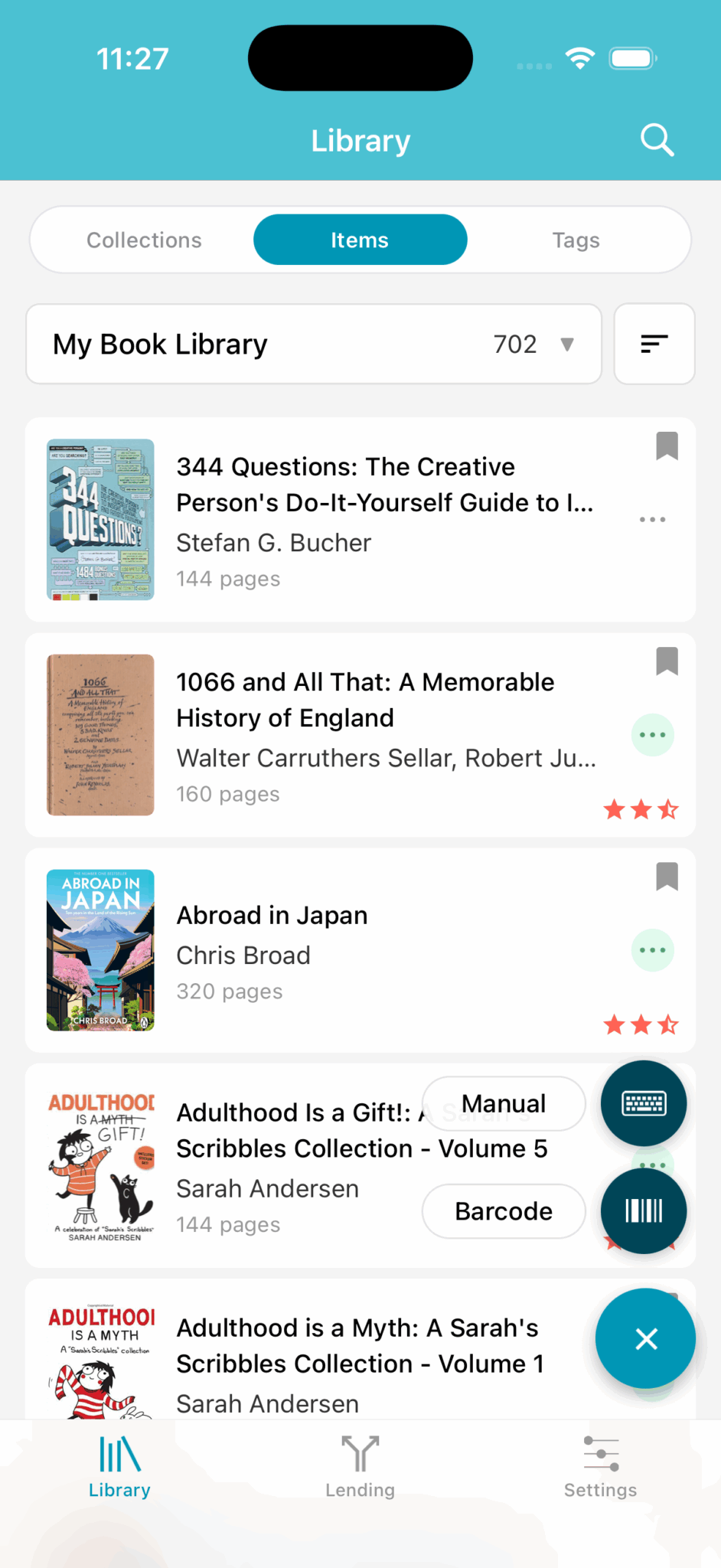
After tapping on the collection you wish to explore, you will be presented with the item list page.
This will, by default, be an alphabetic list of your items by title. (Sorting can be adjusted on each collection by tapping the sorting icon next to the collection name drop-down menu).
Collection Required
Before viewing or being able to add an item, you must first add at least one collection. Otherwise there is nothing to add items to.
Item Page
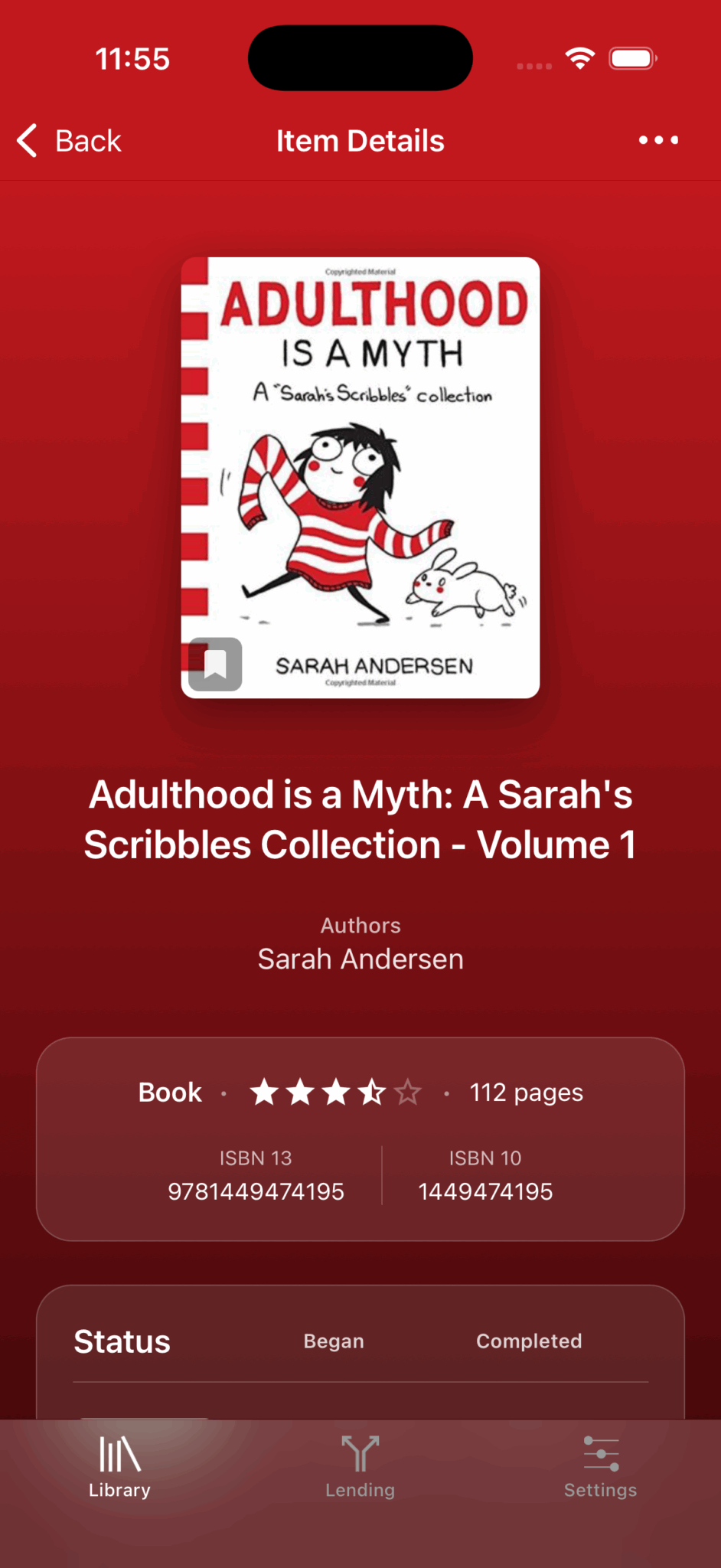
When an item is tapped, either from the search page or the item list page, you will be brought to the item's details.
From this page you can view cover art, description, metadata such as ISBN and page #, your ratings, tags and other information.
Pro Feature
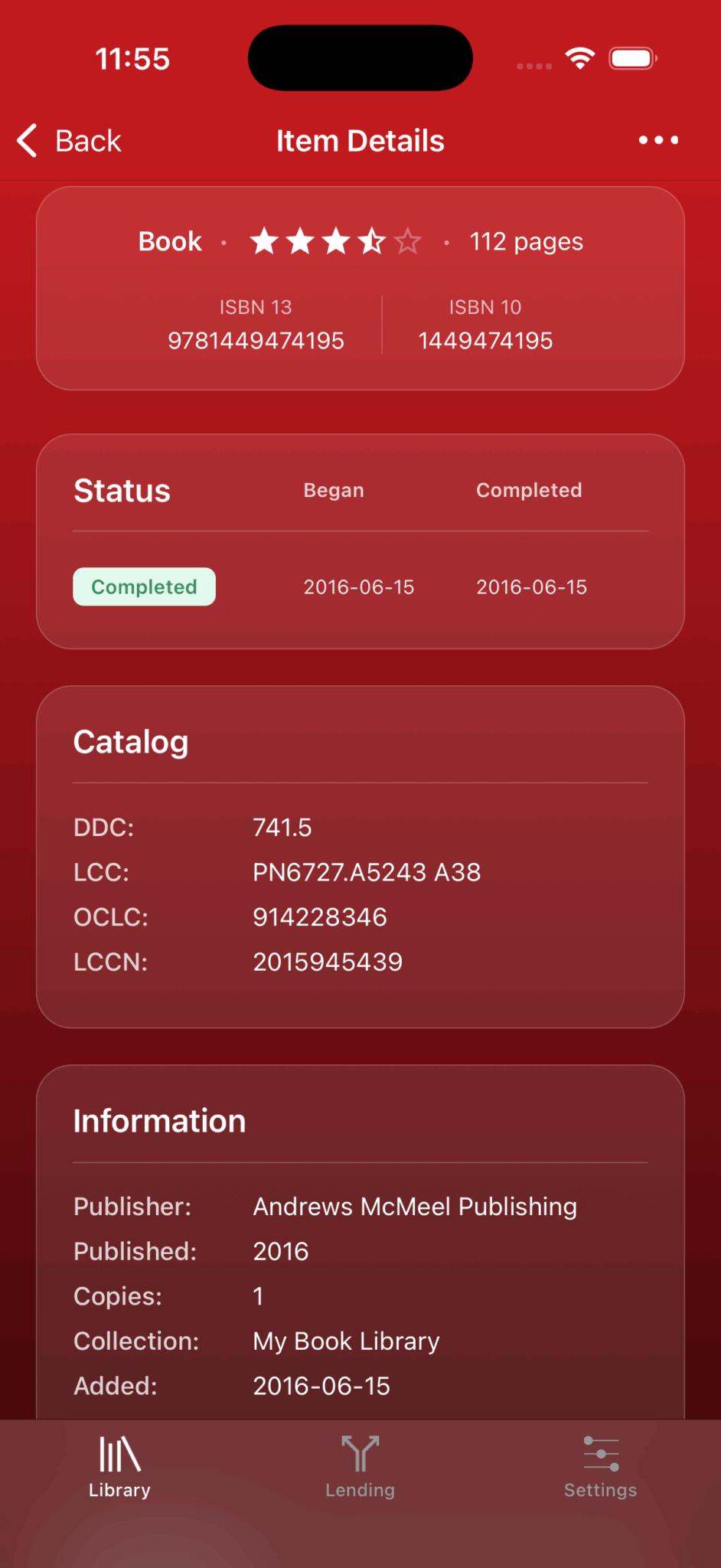
Catalog data (such as Call #, DDC, LCC…) is included in its own section on the item page.
Add
At the bottom right of the item list page click the "+" button to bring up the options to add items.
Selecting Item Type
After choosing either Barcode or Manual Entry, you will be presented with a list for the type of item you are trying to add. Select the appropriate type to begin scanning or entering in data. Currently Libib supports books, board games, movies, music and video games.
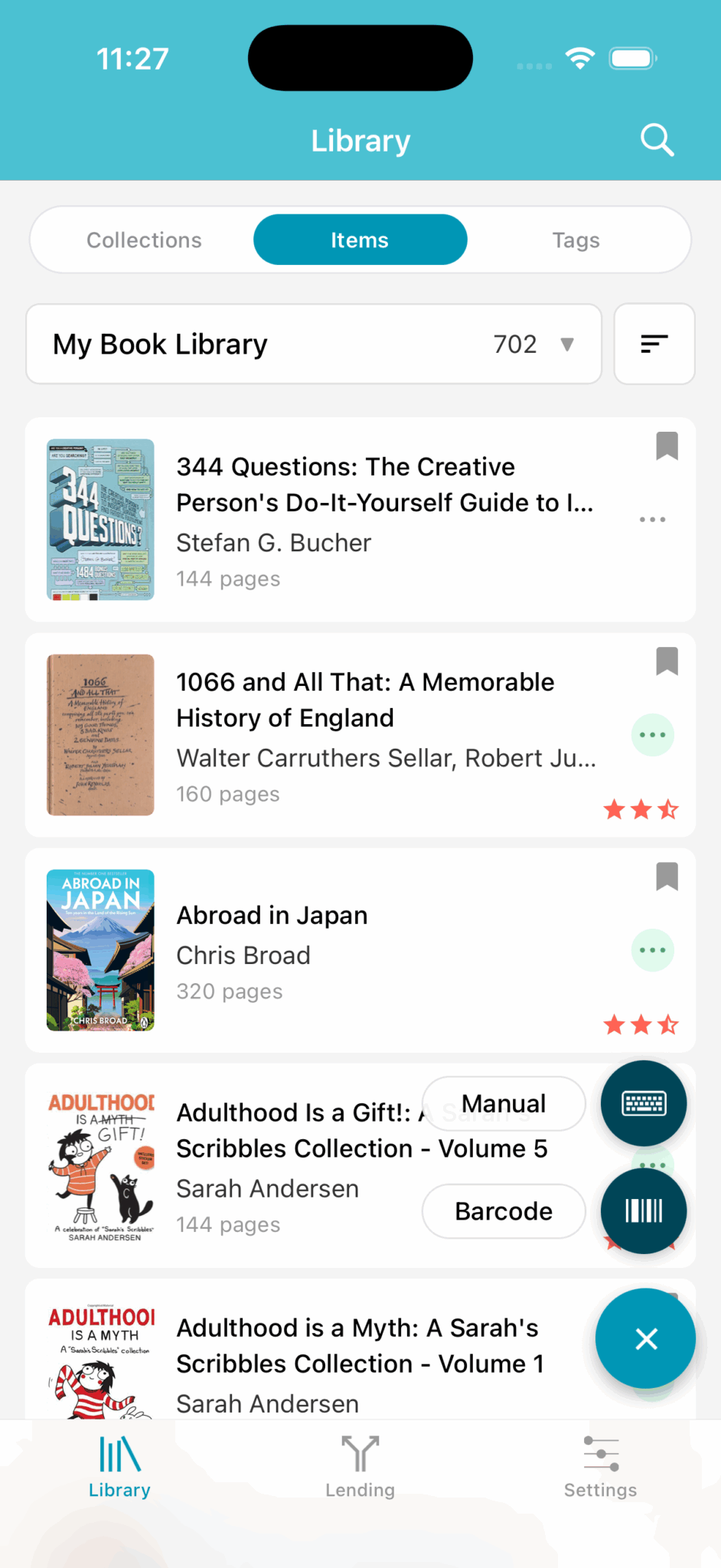

Barcode (Scan or Type)
Lets you either scan a barcode, or at the top of the scanner you can type an ISBN/UPC in the input field for lookup.
Older Books
Book searching needs the ISBN specifically; using a UPC (manufacturer barcode) for books will often return incorrect information. Books published prior to 2005 may not have an ISBN barcode on the back cover. Look on the inside cover for an ISBN barcode and/or number for older books. If none can be found, use the keyword search or manual entry.
Manual Entry
Lets you manually enter all of an item's details. All users retain the ability to edit all their fields on manually entered items. If you enter a complete record, Libib may ask for your permission to copy the item information to our database for other users.
Modify
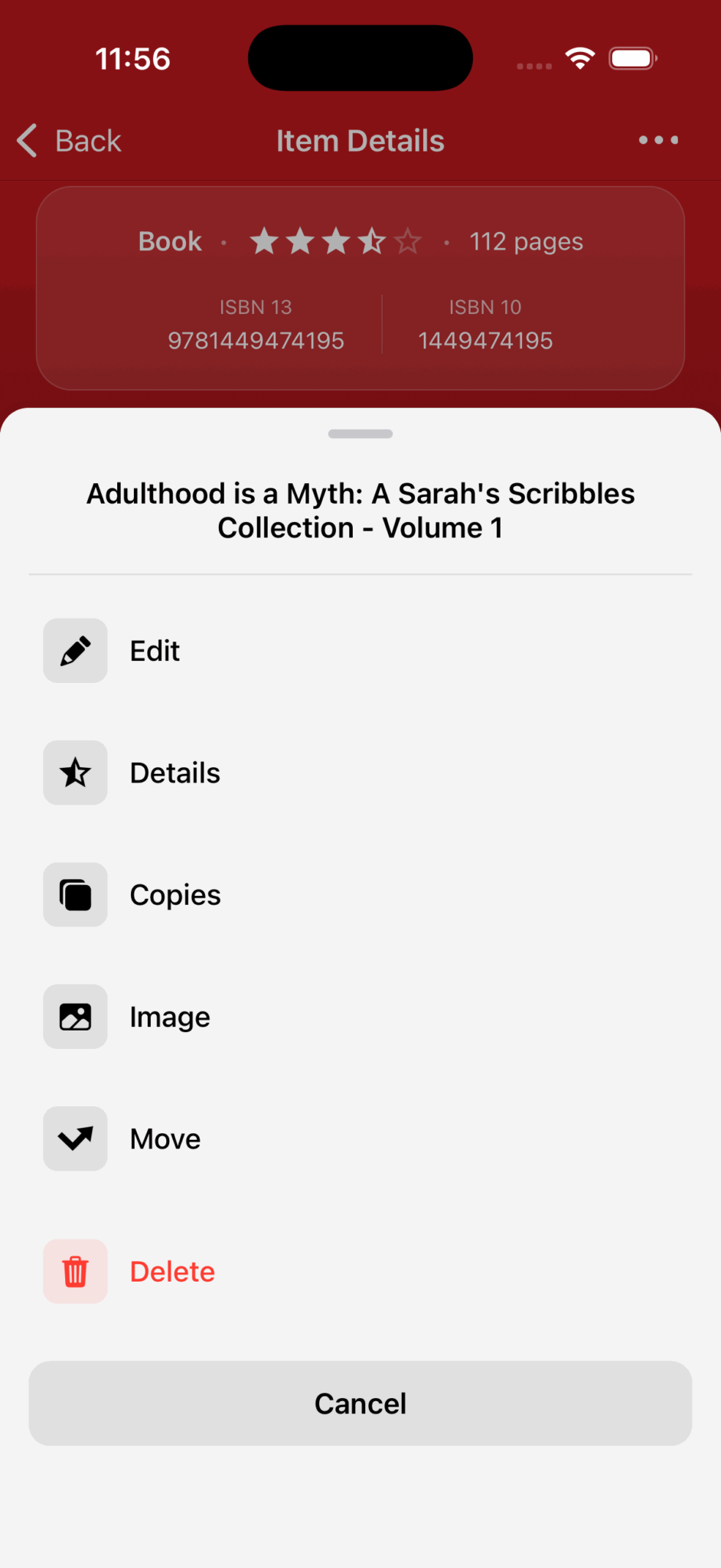
Item editing options are revealed when you tap the ellipsis ... on an item.
The ellipsis menu will bring up a list of editing options:
Edit
Change the metadata of the item: title, creator (author/director/etc…), and description.
Pro Feature
Pro users will have the ability to edit all fields on an item.
Details
Personal details on an item. Lets you edit your rating (1-5 by half stars), review and status (not begun, in progress, completed, abandoned).
Copies
Adjust the number of copies you have for a specific item.
Image
Will allow you to upload a different cover image.
Move
Move an item from its current collection to a different collection within your account.
Delete
Deletes the item completely.
Ellipses Color Status
The color of the ellipses background on the item list denotes your most recent status for an item
| Status | Color |
|---|---|
| Not Begun | Gray |
| In Progress | Yellow |
| Completed | Green |
| Abandoned | Red |