
Kiosk Mobile App Pro
Kiosks
Libib offers managers the option of two types of kiosks for patron self-checkout.
Kiosk Website
A website kiosk, to be used on desktop and laptop computers with a physical barcode scanner.
Kiosk Mobile App
A mobile app for iOS and Android tablets. The app has a barcode scanner built into it.
Kiosk App
This article discusses the kiosk mobile app.
Download Kiosk App
iOS
https://itunes.apple.com/us/app/libib-kiosk-pro/id1328709331
Android
https://play.google.com/store/apps/details?id=com.libibkiosk.app
About
The Kiosk App is meant to be on a tablet device which resides in the library which patrons can walk up to and checkout items from.
To get started, once it is downloaded, a Libib manager must login to the app. The act of a manager logging into the app, unlocks the Kiosk App and connects it to that manager's collections. Now patrons may access the app on that device and check out items using their patron credentials. The app remains unlocked until a manager decides to sign out again.
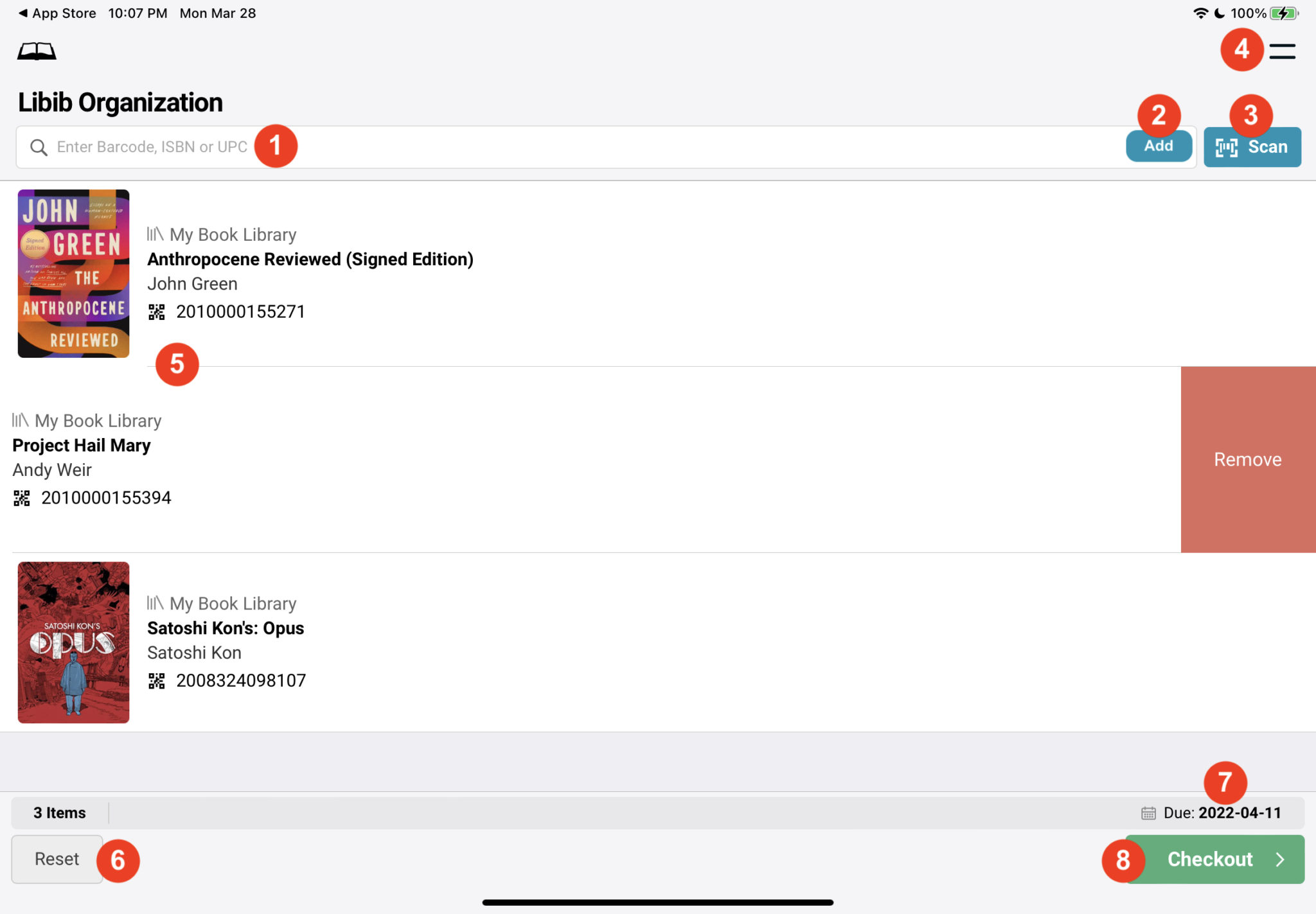
- Barcode Input: For manual entry of barcode number if scanner isn’t working or barcode is damaged.
- Add: Tap add after manually entering a barcode number to look it up and place it in queue.
- Scan: Brings up the barcode scanner to scan barcodes. We recommend using our custom barcodes.
- Menu: Manager menu, requires password to access.
- Change the default barcode scanner camera position (front or back).
- Change the theme (light or dark).
- Logout
- Queue: List of items in queue ready to be checked out. Slide an item over to remove it.
- Reset: Clear all items out of the queue.
- Due: Due date of items once checked out.
- Checkout: Brings up the patron authentication dialog for the patron to complete the checkout process.
Setup & Settings
Web Kiosk
This will create the URL for a web kiosk for your library.
INFO
This setting has no effect on the mobile app
Kiosk Password Mode
Password mode determines the level of password security on your kiosks.
This setting affects both the web and app versions.
| Mode | Description |
|---|---|
| Low Trust | Require patrons to enter their own passwords. |
| High Trust | Create a shared password for all patrons. |
| Absolute Trust | No password required, just email or patron barcode number. We recommend that you use this setting when you are only using the Kiosk App and not the Web Kiosk, for security reasons. |
Disallow Checkouts on Collections
Prevents specific collections from having their items checked out. Basically creating a reference collection.
This setting affects both the web and app versions.