
Batch Edit Pro
Batch edit allows you to select and edit multiple items at a time.
You can batch edit tags, notes, groups, call#, print barcodes, move items from one collection to another, or delete items.
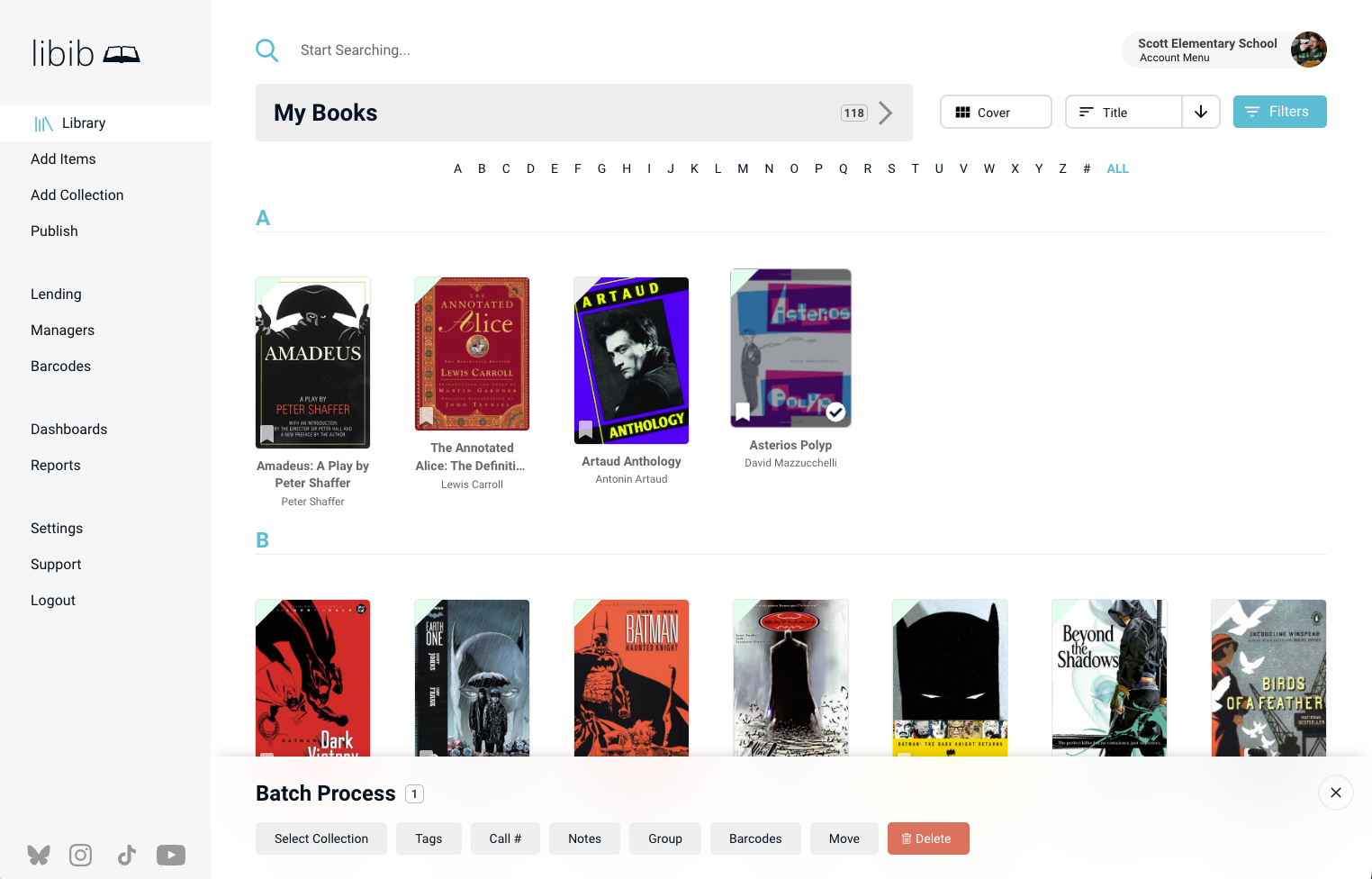
1. Select Item
On Cover/Summary view, hover over the item's cover image to reveal the white circle in the bottom right corner of the cover image – click that circle to select the item and bring up the batch edit panel.
On List View click the circle that appears to the left of the item's title – this will activate the batch edit panel.


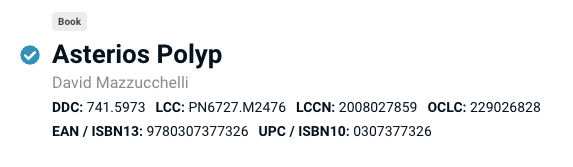
2. Continue Selections
Select more items from the collections page, or use the search/filters to find specific items. You can optionally click the Select collection or Select search buttons to select all items in a collection or all items that are returned in an active search.
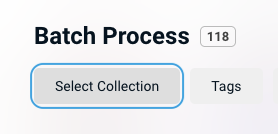
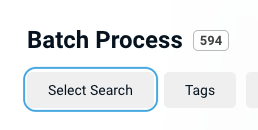
3. Process Batch
Choose the process you want to complete – follow the additional steps for each and click Submit to complete the batch edit.
| Process | Description |
|---|---|
| Tags | Add, replace, or delete tags. Add Tags allows you to add new tags to existing ones – duplicates are automatically consolidated. Replace swaps one tag for another (no action if the tag doesn't exist). Delete removes the entered tag. 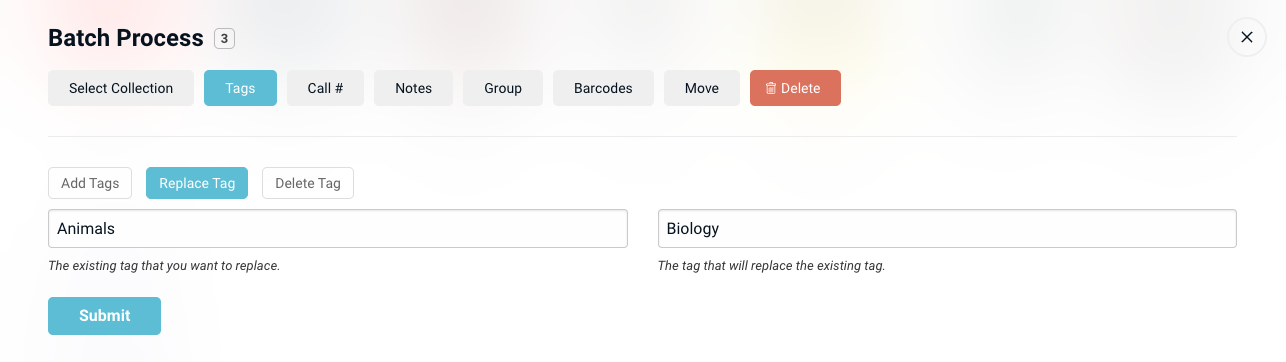 |
| Call # | Set the call number for selected items. Type DELETE CALL to remove the call# for selected items. 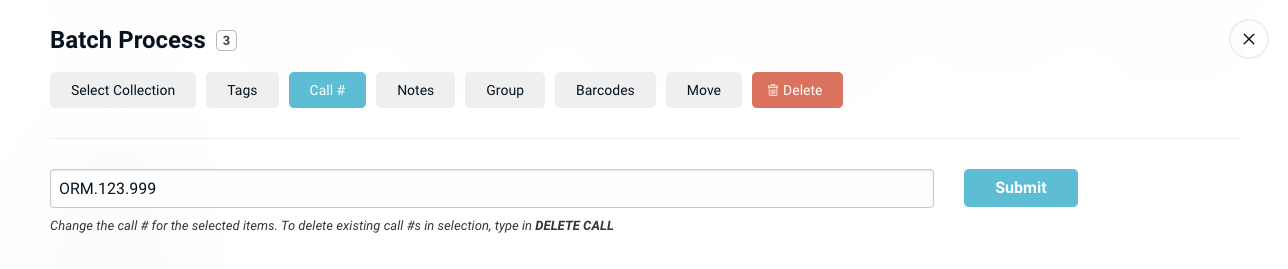 |
| Notes | Append to existing notes for all selected items. Type DELETE NOTES to remove existing notes. 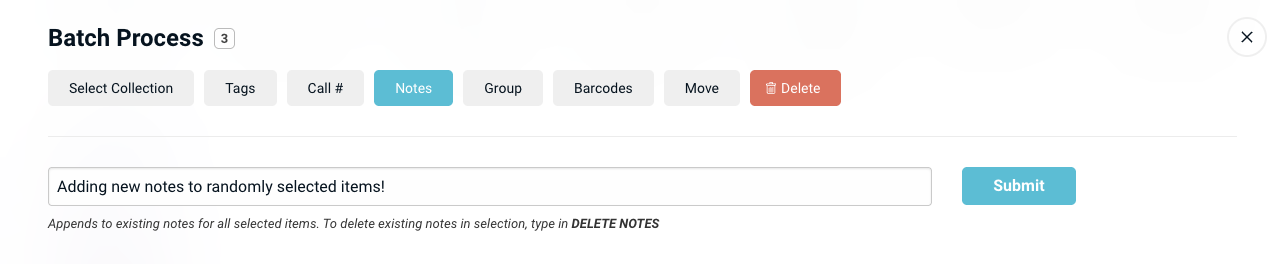 |
| Group | Create a new group or replace an item's current group. Type DELETE GROUP to remove existing groups.  |
| Barcodes | Redirect to the Barcodes page to print labels for your selection. Items with multiple copies will print all copies. Max selection: 5000 items. |
| Move | Move your selection to another collection. Items being actively lent or with active holds cannot be moved. 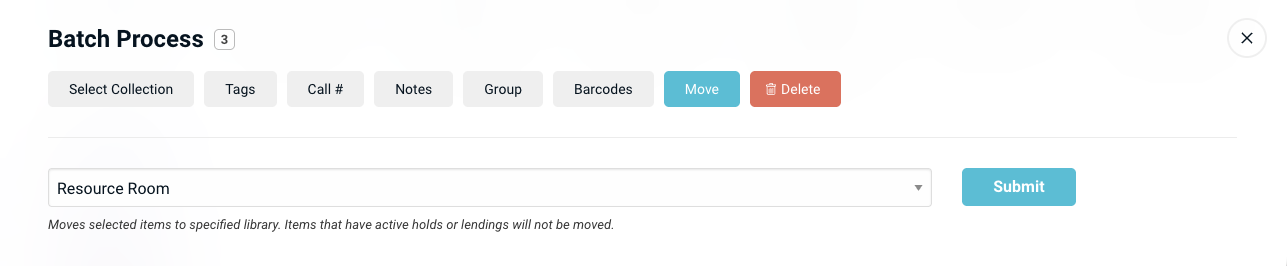 |
| Delete | Permanently remove the selected items from the collection. |
WARNING
Batch edit is a permanent action that cannot be undone. The one exception is for deleted items, which can be restored within 30 days: Settings > Restore.