
Item Overview
When you click on an item in your collection, the item overview page appears. This lets you view all the item information and gives you edit options.
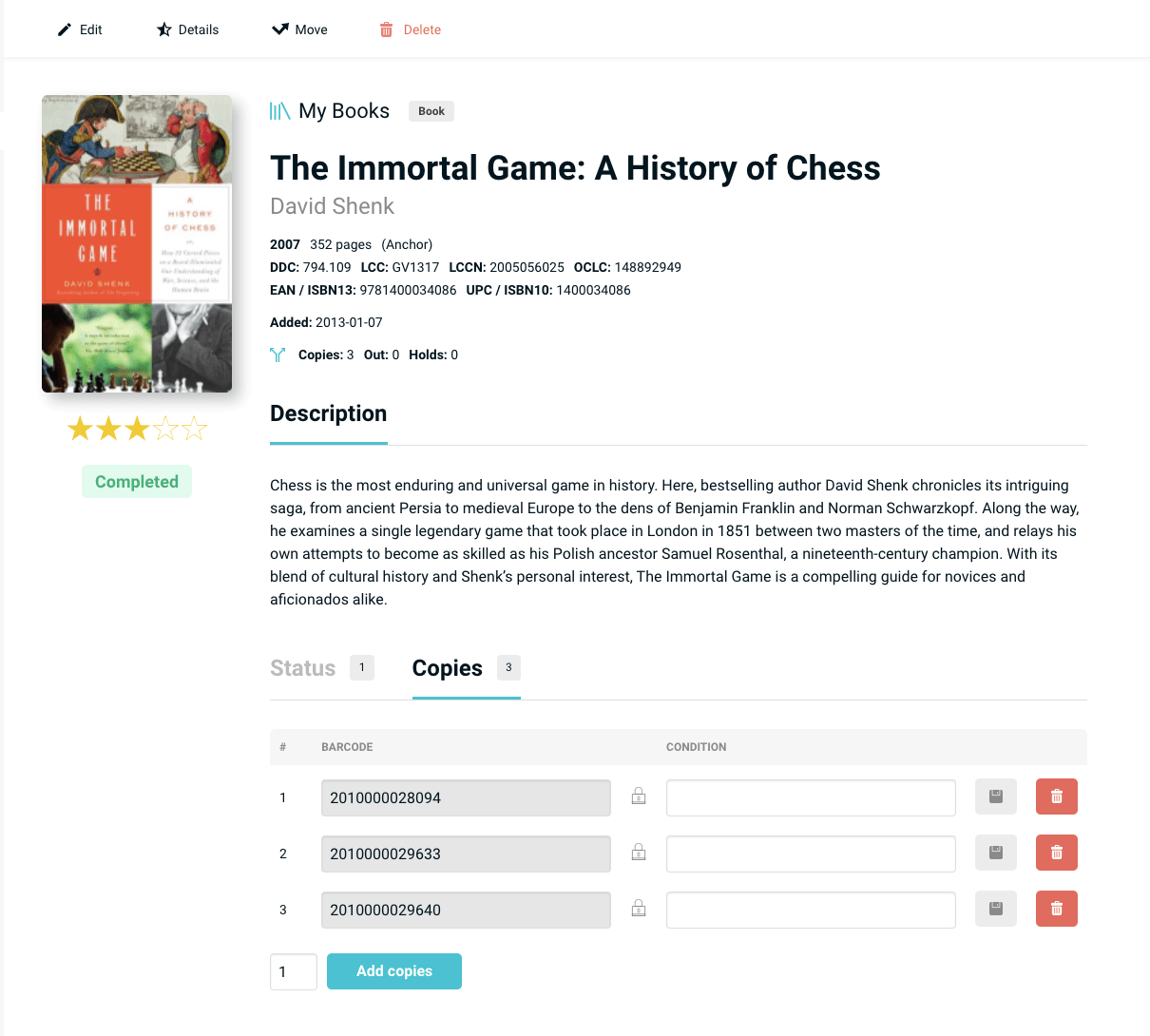
Edit
Editing gives you the ability to change some common details about your item. Editing with a basic account lets you edit the Title (including Title Sort Override), Creator (authors, directors, designers, platforms, band), Price, Cover Image and Description. This is also where you'll access additional item information like tags, groups, and notes.
Pro Feature
Editing in Pro gives you the ability to edit all metadata on an item. Pro users also have access to additional fields and catalog information.
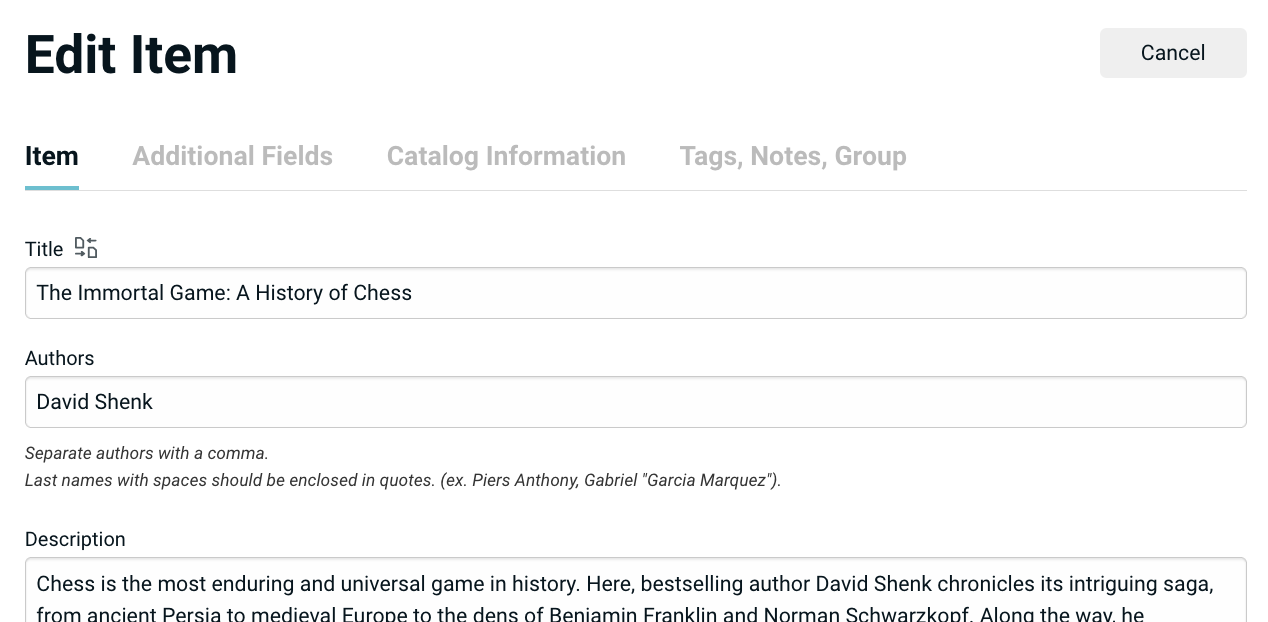
Item
Title
The title is a required field.
Sometimes, you may want to use the "Title Sort Override" by clicking on the swap icon  next to the title label. This will produce a new input field that allows you to force the sort order of the item. This is particularly useful for non Latin based languages whose sort order is not always apparent. For example, the Japanese 私の本 (Watashi no hon) may be improperly sorted under "S" as the character 私 can be improperly transliterated. Using the Title Sort Override, one can force the correct sort order by typing in the Romaji "watashi no hon" or the Kana "わたしのほん" while leaving the title to be displayed appropriately.
The swap icon will be displayed on the item cover to indicate that the sort order has been altered – any published library will not display this swap icon.
Creators
Authors, Directors, Band, Artist, Designers, etc... The person or group name who created the item.
Price
Libib does not automatically generate pricing info, but you can manually add this information here.
Cover Image
Click on the cover image button and you can upload any jpg or png image to replace the current image. The max image file size you can upload is 10MB; images over this limit will be silently rejected.
Publisher Pro
A publisher is the company/entity that produces, and distributes a work to the public. Examples include publishing houses for books, record labels for music, studios or distributors for movies, and companies like Nintendo or Hasbro for video games and board games.
Publish Date Pro
The date the item was published. Only a year is required, but the more complete the date record the better sorting by publish date works.
EAN/ISBN 13 Pro
The EAN or ISBN 13 record of an item. This is always 13 digits.
UPC/ISBN 10 Pro
The UPC or ISBN 10 record of an item. This is 10 or 12 digits. ISBN 10s can sometimes end with an X, and this is valid.
Length Pro
This is displayed as the number of pages, runtime, or play time of an item.
Tags, Notes, Group
Tags
You can add your own subject headings using tags, and these are searchable.
Notes
Notes are a way to keep additional info about the item. This include your general thoughts, more item info, or just general info.
Groups
Grouping is a way to place series items together under the same heading. ex. Harry Potter. Groups only work with title sorting.
Catalog Information Pro
These fields include Call #, ISBN13, ISBN10, EAN, UPC, DDC, LCC, LCCN, OCLC, and Lexile.
Call numbers have a slightly unique function. Dot separated, they can break down a location of an item.
Examples:
- Case 2.Shelf 3
- House.Office.Shelf 5
- SciFi.34.123
These can be sub-searched with the call: search operator.
Additional Fields Pro
These are enabled through Settings > Collections > Manage Additional Fields. You can have up to 4 custom fields per media type. These fields only accept 50 characters worth of data unless you're entering a URL.
Details
The details provided for an item are specific to your account and not shared with other managers or patrons. These fields are user specific.
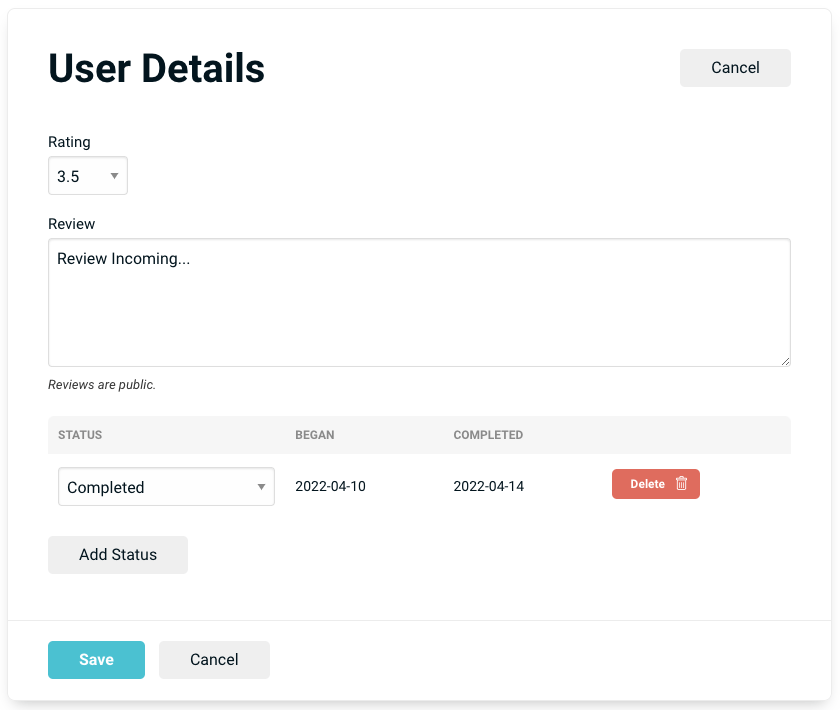
Rating
This is a 1 through 5 star rating with half star steps.
Review
A review of an item in paragraph form.
Status
Statuses can be used to track your progress reading, watching, listening, or playing through a specific item. We offer 4 statuses: "Not Begun", "In Progress", "Completed", and "Abandoned". You can track the start and dates where applicable and track as many statuses per item as needed.
Move
Move an item to another collection within your account. If you move an item to a collection that already contains the item, then any edits of the moved item are discarded, the item that already exists in the collection retains its metadata, and a copy is appended instead.
Pro Feature
Pro users have access to move individual copies of an item, as well as using Batch Edit to move items in bulk.
Delete
Removes an item completely from the collection.
Pro Feature
Pro users can restore deleted items for up to 30 days under Settings > Restore tab.
Flag
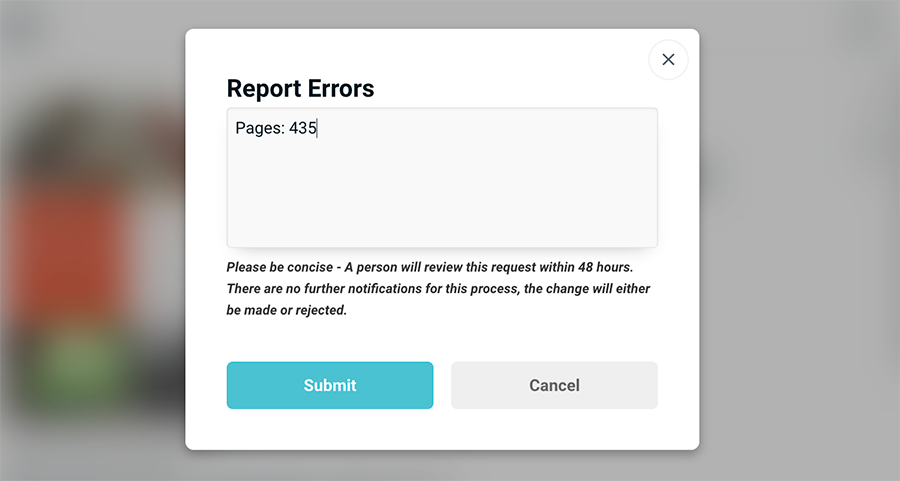
If the title, description, publisher, date, anything is incomplete or incorrect, Libib offers you a flagging feature on the website. The flag notifies Libib staff that something is wrong. We will review the request within 48 business hours.
Flagging will fix not just your item data, but the primary record as well.
Copies
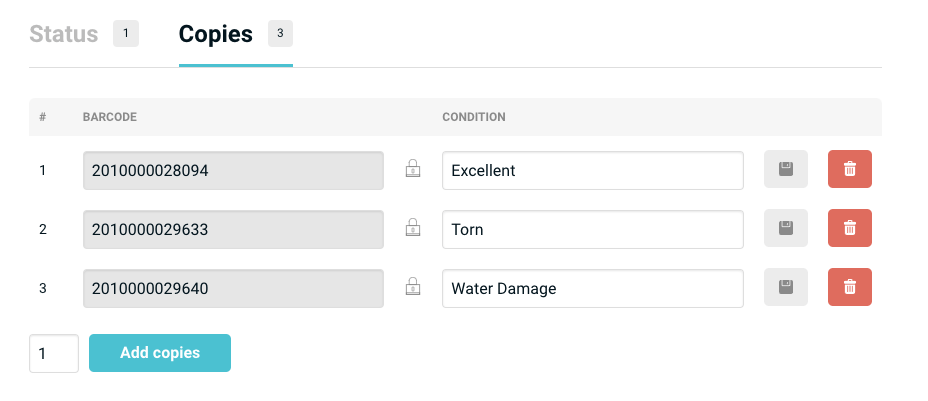
Copies are managed within the "Copies" tab towards the bottom right of the items details page.
Add Copy
You can add multiple copies by changing the number of copies to add and clicking on the "Add copies" button – with a limit of 500 total copies per item. From here you can also write a condition note specific to each copy.
Pro Feature
Copies in Pro also have custom barcodes auto-generated for each copy which can be used during lending. These barcodes can be overridden manually, though we highly recommend that you use the ones we generate. Barcodes must be between 5-15 digits.
Save Copy Edits
Click the floppy disk icon to save any edits you've made.
Delete Copy
Click the trash can icon to delete a specific copy.
An item must have at least 1 copy - you cannot have 0 copies of an item.
Edit / Details
Edit can be thought of this way: Changes that affect the meta-data of an item affects that item for all users in an account.
Details This is data specific to the user making the change. A rating is only available to the user who makes the rating, not to all the users on the account. They can apply their own rating.