
Add Items
There are three methods for adding items to your Libib collection:
Search

When searching to add an item select the collection you want to add the item to, the type of item you are searching for, and then type your search in the input box.
UPC/ISBN
For all types of items, UPC/ISBN does an immediate lookup and add. If you have a physical barcode scanner, you can place your cursor in the input box, and just start scanning each item. Otherwise, you can simply type the UPC/ISBN in the input box. This is the most accurate way to lookup an item.
Older Books
Book searching needs the ISBN specifically; using a UPC (manufacturer barcode) for books will often return incorrect information. Books published prior to 2005 may not have an ISBN barcode on the back cover. Look on the inside cover for an ISBN barcode and/or number for older books. If none can be found, use the keyword search or manual entry.
Keywords
Keywords let you search for items by titles, authors, actors, directors, keywords, band names, etc. This comes in handy when you don't have the UPC/ISBN available.
LCCN Pro
You can lookup books using its LCCN (Library of Congress Control Number). There are specific ways to format these numbers, which don't always match the format shown in the book.
Manual Entry

Manual Entry allows you to create a completely custom entry. This method is ideal for antique books and personal entries that are unavailable through standard lookups.
Pro Feature
Pro users have access to additional fields when creating manual entries.
CSV Import

Libib allows you to import items through CSV files (UTF-8 encoded), requiring at least one identifying column like ISBN 13, ISBN 10, UPC, or EAN.
Before Import
- Only one type can be imported at a time (i.e., books and movies cannot be mixed together in an import)
- Items require a valid identifier (ISBN10/ISBN13/UPC/EAN) for import. Items without identifiers are skipped. 1
- Libib auto-curates data based on the identifier value.
- Additional data you add to your CSV file will overwrite those fields with your entries.
- UTF-8 encoding is mandatory for files containing non-Latin characters or diacritics.
¹Pro Feature
Force Import Mode lets you import items without a valid identifier - only a title is required. Enabled on the Field Alignment page.
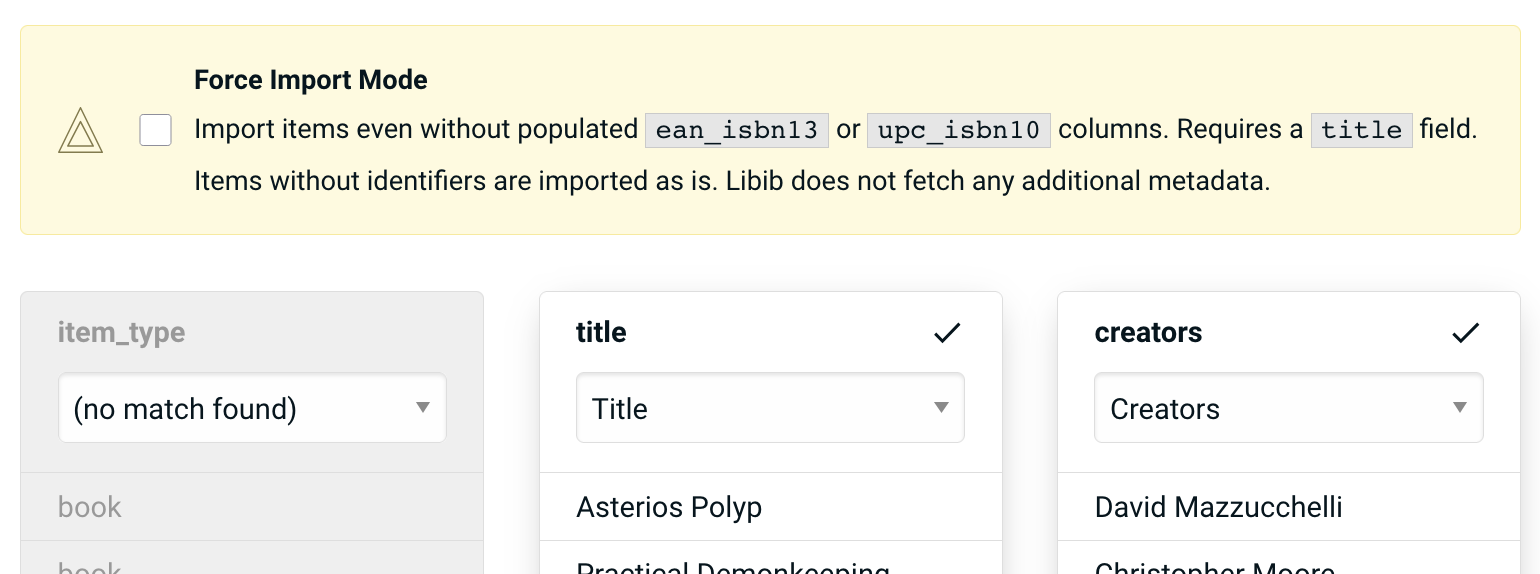
| Has Title | Has Identifier | What Happens |
|---|---|---|
| ✓ | ✓ | Imports with metadata from identifier; your CSV fields take priority. If identifier not in our database, imports your data as-is. |
| ✓ | ✗ | Imports your data as-is, no metadata lookup. |
| ✗ | ✓ | Attempts metadata lookup; skipped if not found. |
| ✗ | ✗ | Skipped. |
Import Templates
CSV import templates available for download:
CSV Import Fields
| Field | Notes |
|---|---|
| added | The date the item was added to your collection. (Format: YYYY-MM-DD) |
| creators | Authors/Directors/Platform/Band/Designers – the creator(s) of the item. If more than one, they can be comma separated. (Format: firstname lastname, firstname lastname) or (Format: platform) or (Format: band) |
| began_date | The date you began the item. (Format: YYYY-MM-DD) |
| Optional identifying elements for your items. | |
| completed_date | The date you completed the item. (Format: YYYY-MM-DD) |
| copies | How many copies you have of this specific item. Integers only. |
| description | The description of the item (limited to 5000 characters, ~1000 words). |
| group | What series an item belongs to. |
| upc_isbn10 | ISBN 10 for books or UPC for non-books. |
| ean_isbn13 | ISBN 13 for books or EAN for non-books. |
| The DDC (Melvil Classification) of an item. | |
| The Library of Congress Classification of an item. | |
| The Library of Congress Control Number of an item. (Books only) | |
| The OCLC Control Number of an item. (Books only) | |
| The Lexile for an item. (Books only) | |
| length_of | Pages in books, runtime in minutes for movies, album length in minutes. |
| number_of_discs | The number of discs for an album, movie, or video game. |
| aspect_ratio | The aspect ratio of a movie. (Movies only) |
| notes | Any personal notes that you have made about the item. |
| price | The price/cost of the item; this field is always user provided. |
| publish_date | The date the item is published. (Format: YYYY-MM-DD) |
| publisher | The publisher of the item. |
| rating | Your rating on a scale of 1–5, half increments allowed. (ex. 4.5) |
| review | Your review of the item. |
| review_date | The date you made your review. (Format: YYYY-MM-DD) |
| status | Allowed values: Abandoned, Not begun, In progress, Completed. |
| tags | Comma separated words that operate as categorizations for the item. |
| title | The title of the item. |
Field Alignment
After uploading, you will verify column alignments.
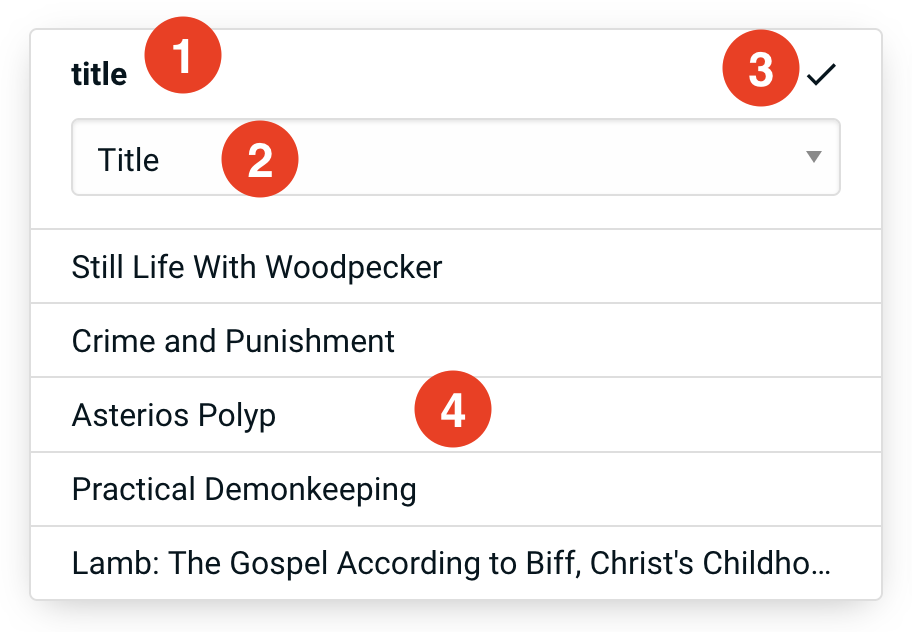
- The name of your csv column.
- A drop down list of possible matches that Libib will recognize. Libib tries to auto-match your column names to our options, but you can adjust here if needed.
- If there is "no match found", Libib will ignore the data in that column. A checkmark indicates that the column has been matched to a Libib field.
- The first 5 rows of your csv's column data for review.