
Settings
Collections
Export Collection Data (csv)
Choose any of your collections and export them to a comma separated values (csv) file. You can only export one collection at a time, and they will exist as separate files.
Export barcodes(.csv) Pro
Export a list of auto-generated custom barcode numbers (or your own custom barcodes if you have edited) for each copy of every item in a library. The export contains a subset of the information in the "Export a library" file, in a de-normalized format. The primary purpose of this export is to create labels.
Manage Additional Fields Pro
Allows account owner/admins to add up to 4 custom fields for each media type.
Set Article Location
Determines where to place articles on a title. The options are Hide: Giver, Front: The Giver, or Back: Giver, The.
Set Default Status
Set an item's status when it is added. If every book you add is created after you've read it, you can set the default to "Completed" and every item you add will register as completed. This affects all libraries.
Rename Collections
Change the name of an existing collection.
Delete Collections
Delete the collections you choose.
WARNING
This is an unrecoverable action for Libib Basic users. If you delete a collection, the collection, along with all the items in it are deleted permanently.
Pro Feature
Restore can be used to recover entire collections for up to 30 days after deletion. This option is found under Settings > Restore.
Lending Pro
Lending Due Date
(Account Owner sets) Change the default due date by setting how many days after item is checked out before it is due. Changing lending due dates affects all dates moving forward, and does not change past due dates.
Patron Email Reminder
(Account Owner sets) Reminds patrons of an upcoming/past due date via email. You can choose to remind them anywhere from 1 to 14 days before the item is due. This number should always be LOWER than the Lending Due Date number (if it is equal, emails will not go out). You may also set up to three past-due reminder emails anywhere from 1 to 14 days after the item was set to be due. Submitting no value will prevent that patron reminder email from being sent out.
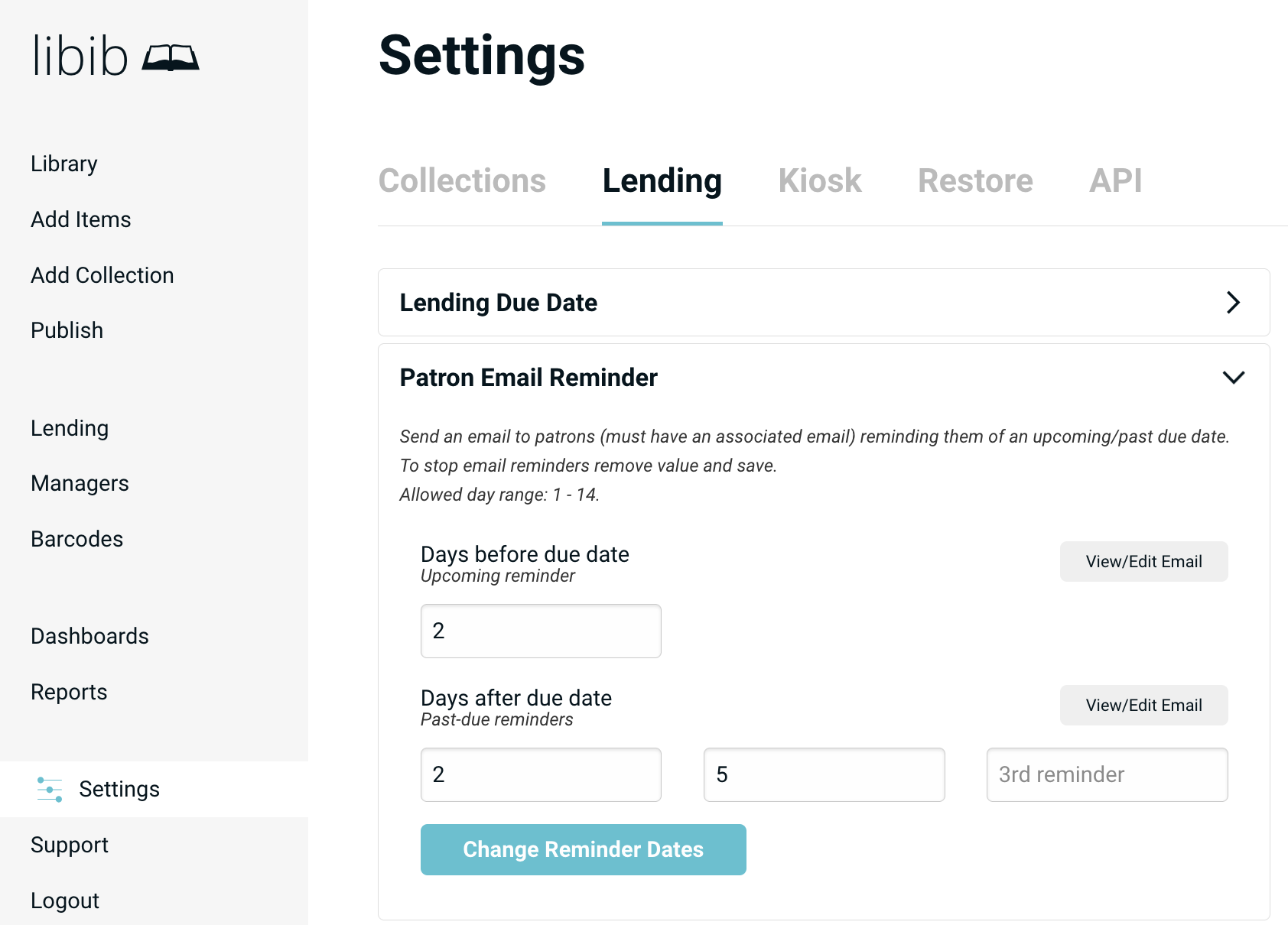
Additionally, email templates are available when clicking on the View/Edit Email button where the account owner may set custom messages.
Patron Hold Emails
(Account Owner sets) sends an "item is available" reminder email to patrons who have active holds. These emails are sent throughout the day in batches and are sent as long as the item is not currently checked out and there are not other patron holds in front.
Additionally, an email template is available when clicking on the View/Edit Email button where the account owner may set a custom message.
Export Patrons (csv)
Export all the patrons into a comma separated values (csv) file.
Kiosk Pro
Libib offers managers the option of two setups for patron self-checkout kiosks:
Kiosk Web: A website kiosk, to be used on desktop and laptop computers with a physical barcode scanner.
Kiosk App: A mobile app for iOS and Android tablets. The app has a barcode scanner built into it.
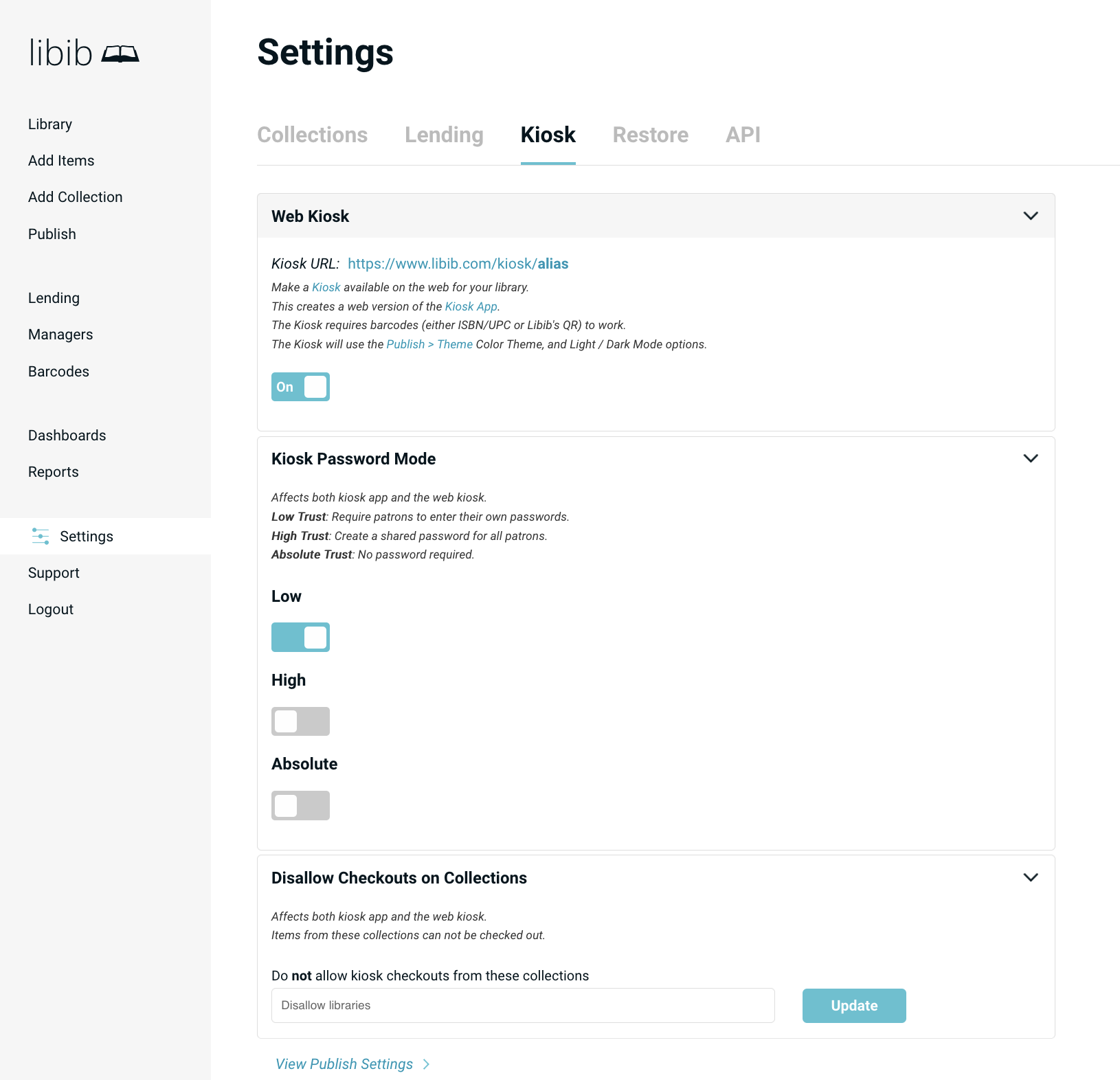
To turn on the web kiosk, navigate to: Settings > Kiosk > Web Kiosk
Publish Alias Required
Note that you must have first defined an alias in the publish section of Libib before you can turn on the kiosk. That same alias is used for the kiosk for consistency. You do not have to publish any actual collections, but you do have to define the alias.
The options for kiosk self-checkout are:
Web Kiosk
This will create the URL for a web kiosk for your library.
Once a web kiosk is turned on, it becomes available at:https://www.libib.com/kiosk/[alias]
Kiosk Password Mode
Password mode determines the level of password security on your kiosks.
This setting affects both the web and app versions.
| Mode | Description |
|---|---|
| Low Trust | Require patrons to enter their own passwords. |
| High Trust | Create a shared password for all patrons. |
| Absolute Trust | No password required, just email or patron barcode number. We recommend that you use this setting when you are only using the Kiosk App and not the Web Kiosk, for security reasons. |
Disallow Checkouts on Collections
Prevents specific collections from having its items checked out. Basically creating a reference collection.
This setting affects both the web and app versions.
Restore Pro
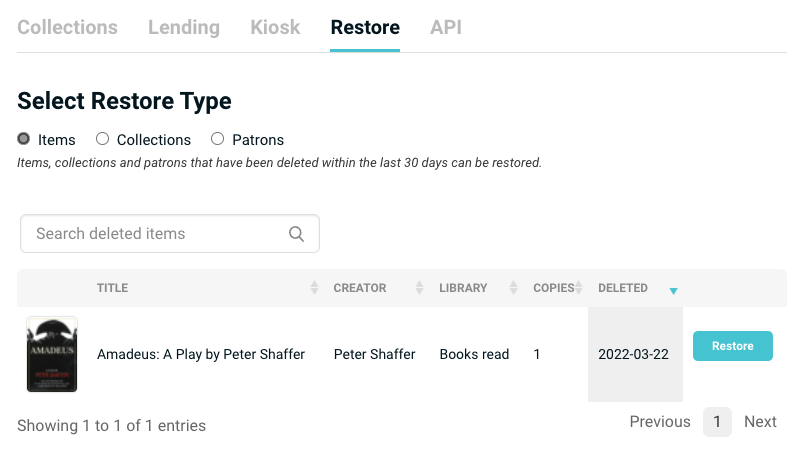
Restore allows Pro users to recover items, collections, and patrons for up to 30 days after deletion. To find Restore go to Settings > Restore.
Use the Select Restore Type to switch between different types that can be restored. Simply click the Restore button to the right of the object you'd like to restore.
API Pro
Generate or delete user API IDs and API Keys.
Full REST API documentation found here: REST API documentation.