
Quickstart Website
1. Add Collection
After you've created your account and logged in you should navigate to the Add Collection page. This is the first step to begin cataloging your items.
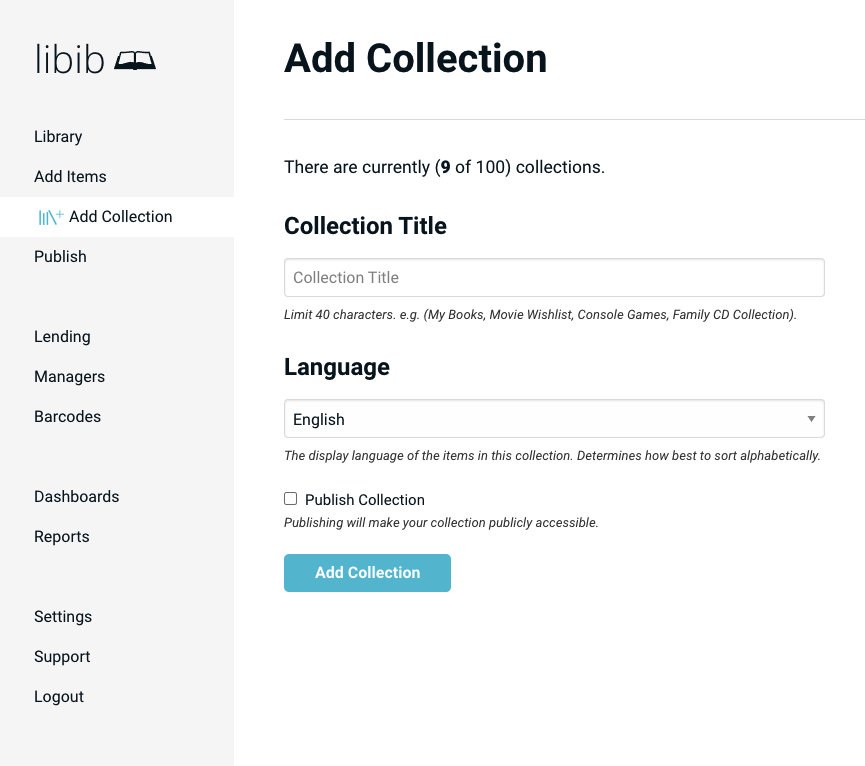
Collection Title
This will be the name of your collection. A collection organizes items based on a physical or logical distinction, such as location or language.
Language
This should be the primary language used for this collection and will assist with sorting. You cannot change this setting after the collection is created. You can create up to 100 collections so you can keep languages in separate collections if you want.
Publish Collection
Optionally choose to publish your collection. Publishing will make it public. Unchecking will keep your library private. Publishing your collection is the way to share your library with others.
2. Add Items
Now that you've created your first library you're ready to begin adding items. Click Add Items in the left sidebar. Here you can select the collection you want to add items to and what type of item you're adding (books, board games, movies, music, or video games).
Search
Look up items by ISBN, UPC, Keywords, or LCCN (LCCN is PRO only)
CSV Import
Import using our CSV templates. Detailed CSV import guide.
Manual Entry
This method should be used for items without an ISBN or UPC. Here you can manually enter the data for each field.
3. Publish Public Site
You've added your items, now you may optionally set up your published site. Here you can assign your public site URL which is the link you will use to share your collections with others. To find your unique URL click on Publish in the left sidebar. At the very top of the Publish page your link is displayed. If you don't see one you'll need to assign an alias and save to create your URL.
In the Select Collections to Publish input field, you'll select the individual collections you want available on your published site.
Pro Feature
Pro users will have many additional options here. We cover these on our publish support page. Our YouTube channel also has a publishing tutorial video.
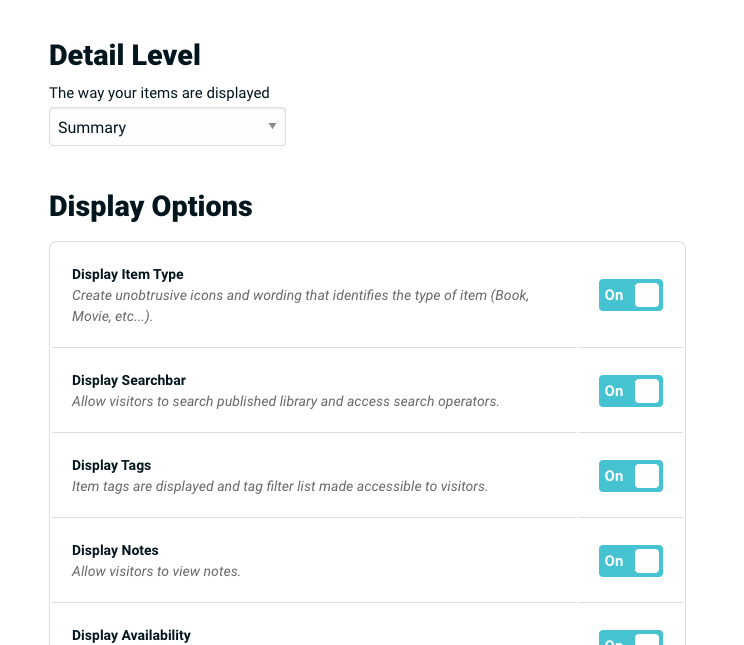
4. Public Site Theme & Settings Pro
Use each of the tabs across the top of the Publish page to setup your Theme, Settings, and Announcement.
At this point you can begin setting up your patrons, look into creating custom barcodes, activate your kiosk, and other great features.