
Library
Your Library is where your catalog exists. From this page you can browse your items, and switch between your different collections.
The top center of the library page facilitates navigating your catalog in different ways.
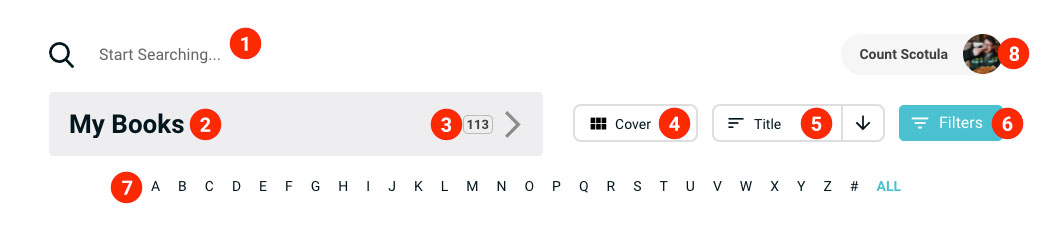
Search: The default search will look through the titles, authors, directors, actors and band/artists, notes, tags and groups within the active collection. Clicking the search box reveals additional search filter operators in a dropdown menu.
Pro Feature
Toggle
Search all collectionsin the dropdown menu to expand searching into all your existing collections.Collection: This is the title of your collection. Click on it to select or search for a different collection. To edit the Collection name go to
Settings > Collections > Rename CollectionItem Count: The count of the unique items you have in the library you are viewing. Hover your mouse over to reveal a tooltip which shows total number of all copies.
Detail Level: Three selections for the default view of your items. The choices are: cover, list, and summary.
Sort: You can change your sort options, and the order in which it sorts by clicking on the label and arrow respectively.
Filters: Here you can access different ways to filter your collection. You can filter by item type (book, boardgame movie, music, or videogame), status (not begun, in progress, completed, or abandoned), or by tag.
Pro Feature
When
Search all collectionsis on, the filter will show all the tags - not just tags in a single collection.List Categories: Listing categories will automatically bring back items that start with the selected letter. List categories will change depending on what your sort is set to. For example, if you're sorting by rating, your categories will be rating numbers.
Account Menu: Your name and profile image will appear in the top right. This is where you can view and edit account information, switch profiles (if your email is attached to more than one account), manage billing (Pro only), and view Libib notification messages.