
Quickstart Barcodes Pro
For each copy of an item, Libib automatically generates a custom SKU barcode.
For each patron, Libib also automatically generates a custom SKU barcode.
SKU
Our SKU barcode always contains 12 digits, plus 1 checksum digit calculated using a Modulo 10 at the end for a total of 13 digits. Libib's SKU barcode numbers follow a very specific pattern:
Libib item barcodes are always prefixed by 201, start from 1 and include a checksum. Libib patron barcodes are always prefixed by 202, start from 1 and include a checksum.
A checksum is just a number that is used in the specs to verify that the rest of the barcode is valid.
Libib automatically takes care of all of this for you, for example:
| Item Added | Prefix | Padded # | Checksum | SKU Barcode # |
|---|---|---|---|---|
| 1 | 201 | 000000001 | 4 | 2010000000014 |
| 2 | 201 | 000000002 | 1 | 2010000000021 |
| 3 | 201 | 000000003 | 8 | 2010000000038 |
| … | 201 | … | … | … |
| Patron Added | Prefix | Padded # | Checksum | SKU Barcode # |
|---|---|---|---|---|
| 1 | 202 | 000000001 | 3 | 2020000000013 |
| 2 | 202 | 000000002 | 0 | 2020000000020 |
| 3 | 202 | 000000003 | 7 | 2020000000037 |
| … | 202 | … | … | … |
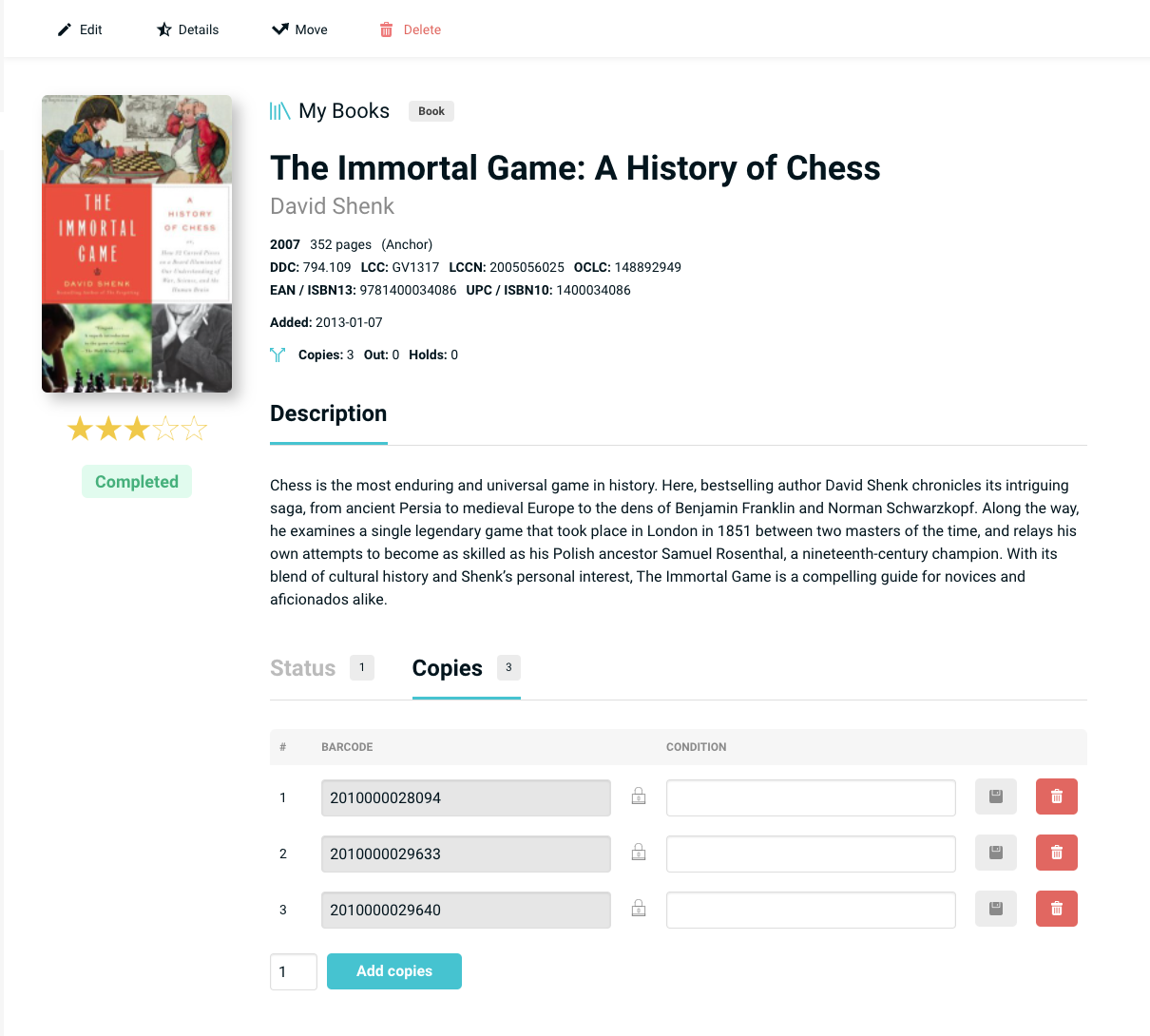
Figure A shows the item details page with 3 copies. When the "Copies" tab is selected, the barcodes are revealed.
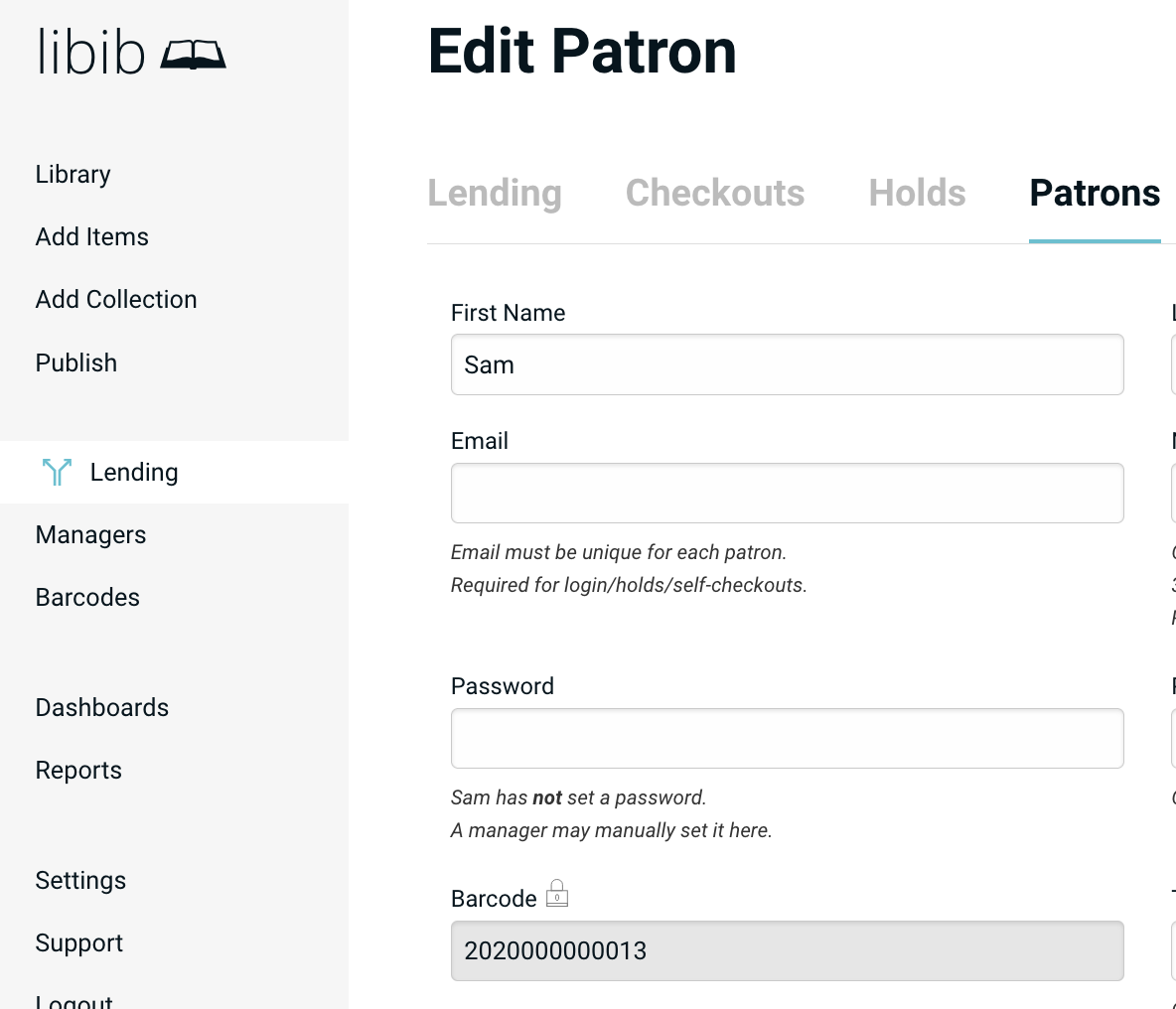
Figure B is the patron edit page with the barcode shown in the form.
Edit Barcode
Notice that to edit these barcodes you must click on the lock icon next to the field; this is to prevent accidental corruption or collisions. The barcodes must be in the correct format for Libib to guarantee recognition. Only edit these if you have a good understanding of what is required.
Export Barcode Numbers
To export item barcodes log on to libib.com and navigate to:
Settings > Collections > Export Barcodes
To export patron barcodes, log on to libib.com and navigate to:
Settings > Lending > Export Patrons
These exports will output the barcode number, along with some additional metadata. However the actual barcode symbol is not created. That must be done either with Libib's barcode generator, through a professional printer, or using a service like Avery's Barcode Generator. Read the Print Barcodes section below for more information.
Print Barcodes
With Libib
Our preferred method for printing QR barcodes.
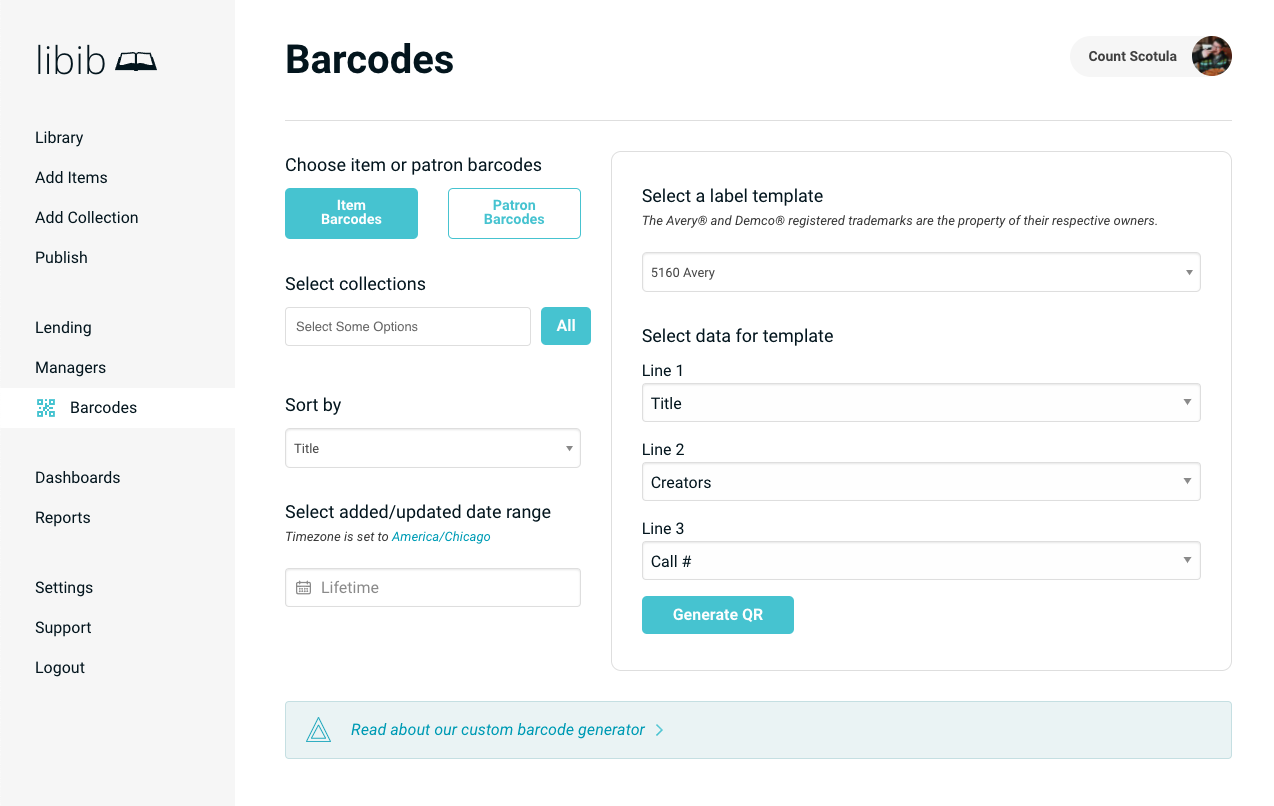
A simple QR barcode label generator included within the website.
It works primarily with labels compatible with Avery® templates.
If you wish to use this feature, review our barcode instructions.
With Avery
If you're needing more control over your layout, and wish instead to print using Avery's Barcode Generator (or any other barcode software), you can export your barcodes and follow our Print Barcode Labels Using Avery video tutorial.
With Pre-populated
We also have a very basic printable sets of supported item barcodes 1-9000 you can download below. These are designed for Avery 5160 labels. These allow you to pre-print and then apply to items as you add them to your library. For example, Libib will auto-assign the barcode 2010000000014 to the very first item you add. Then you can find that barcode # in the pre-printed barcodes below and use it for the item. As you add items, you match the barcodes you have pre-printed to the item as Libib has assigned it.