
Collections
A collection organizes items based on a physical or logical distinction, such as location or language. For categorization, use tags instead. The key distinction is that collections represent where something belongs or how it's separated, while tags describe what something is.
INFO
You can create up to 100 collections – we recommend that you limit your collections to physical locations or logical separations, and categorize them via tags. For example: "Office Library" and "Home Library" could be two separate collections.
When the app is first installed, and you have not used the website to already create a collection, you will land on an empty Collections page in the Library tab.
Add
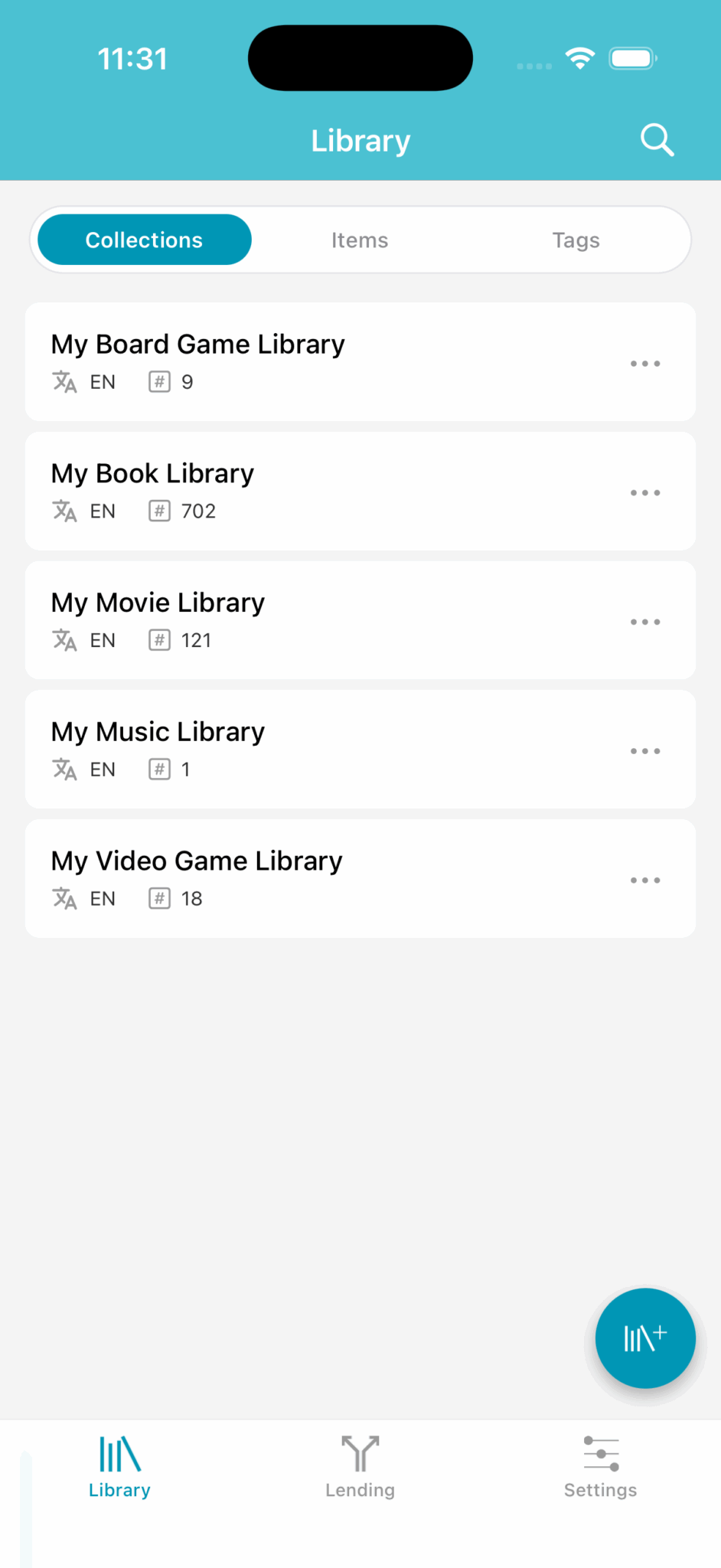
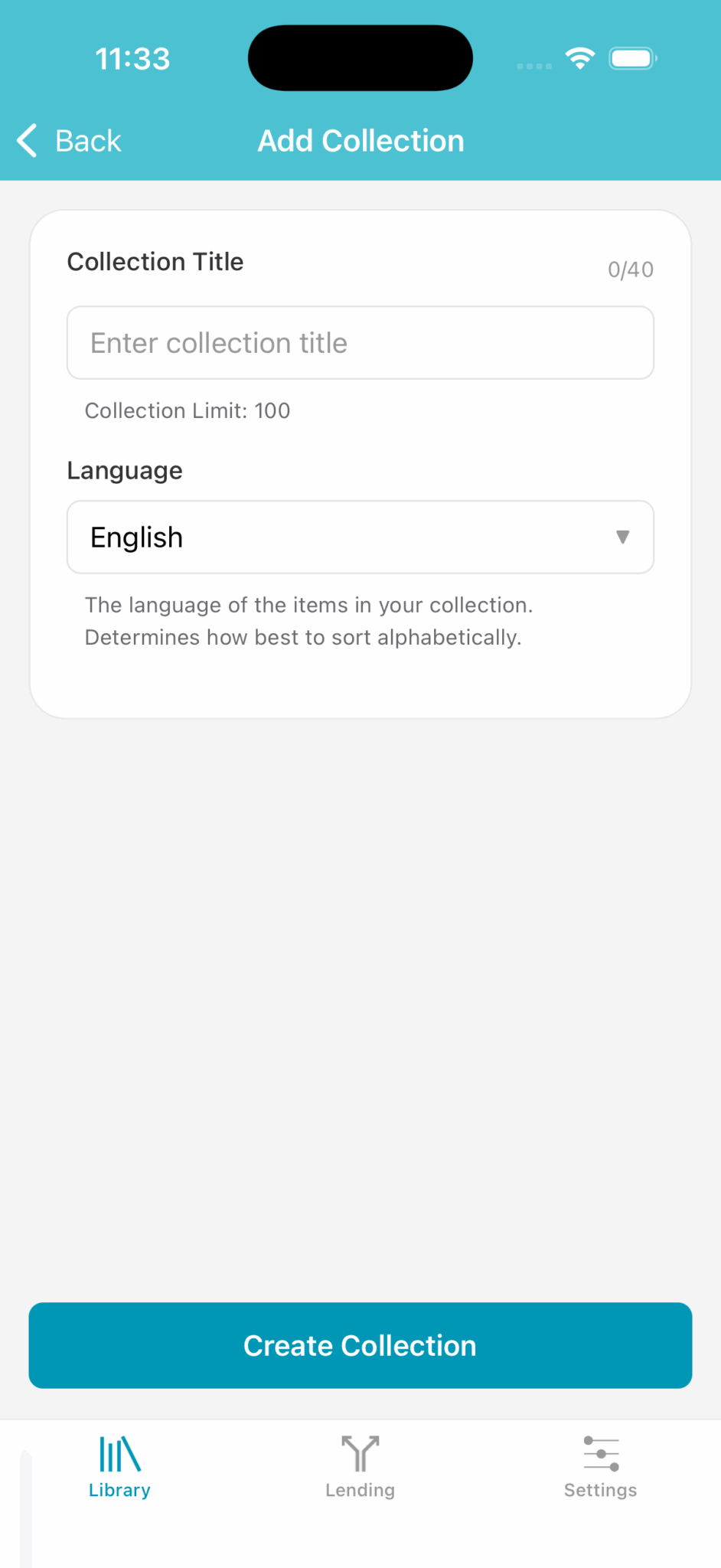
Add a new collection by clicking the "+" button on the bottom right corner.
You must give your collection a title and choose the language.
The language option will determine how best to sort the items in your collection. So if the items that you are adding have titles in Spanish, you should choose Spanish as the language. If you are creating a mixed language library, you will need to decide what language rules for sorting you want to have used when creating the collection.
Creating a new collection will automatically create it in the cloud as well – libib.com will reflect any changes you make in the app.
Force Refresh
If you've added or edited a collection on the website, but don't see them on the app, you can pull-to-refresh on the collections page.
If you have added collections using the website, and have just installed the app, you will see your collections listed out.
In the image above, the user has 5 collections, and the sort language beneath it along with the number of unique items within that collection.
Tap any of the collections to view the items it contains.
When you tap the ellipses ..., you are given the option to edit or delete.
Edit
Allows you to change the name of the collection.
Delete
Pops-up a dialog confirming that you want to remove the collection. This will remove it BOTH on the app as well as in the cloud. If you delete a collection, all items will be removed from it, and it cannot be recovered, so make sure you really want to delete it!