
Patron App Ultimate
The Libib Patron App is an Ultimate mobile app (iOS and Android) that lets patrons connect to a published library right from their phone. Once connected, they can browse collections, search, place holds, check items out to themselves, and manage their own account.
Requires Libib Ultimate
The patron app is an Ultimate feature. It must first be enabled at the Ultimate level (see Ultimate → Patron App), after which each manager can turn it on for their own published library. Which features a patron sees in the app is determined by the published library settings — for example, holds only appear if Allow Patron Holds is enabled, and the account page only appears if Patron Account Page is enabled.
Getting Connected
When a patron opens the app for the first time, they're greeted by the Welcome screen. Connecting a library takes three steps:
- Visit the library's published site on any computer or phone
- Scan the Patron App QR code shown on that site
- Start browsing, holding, and checking out
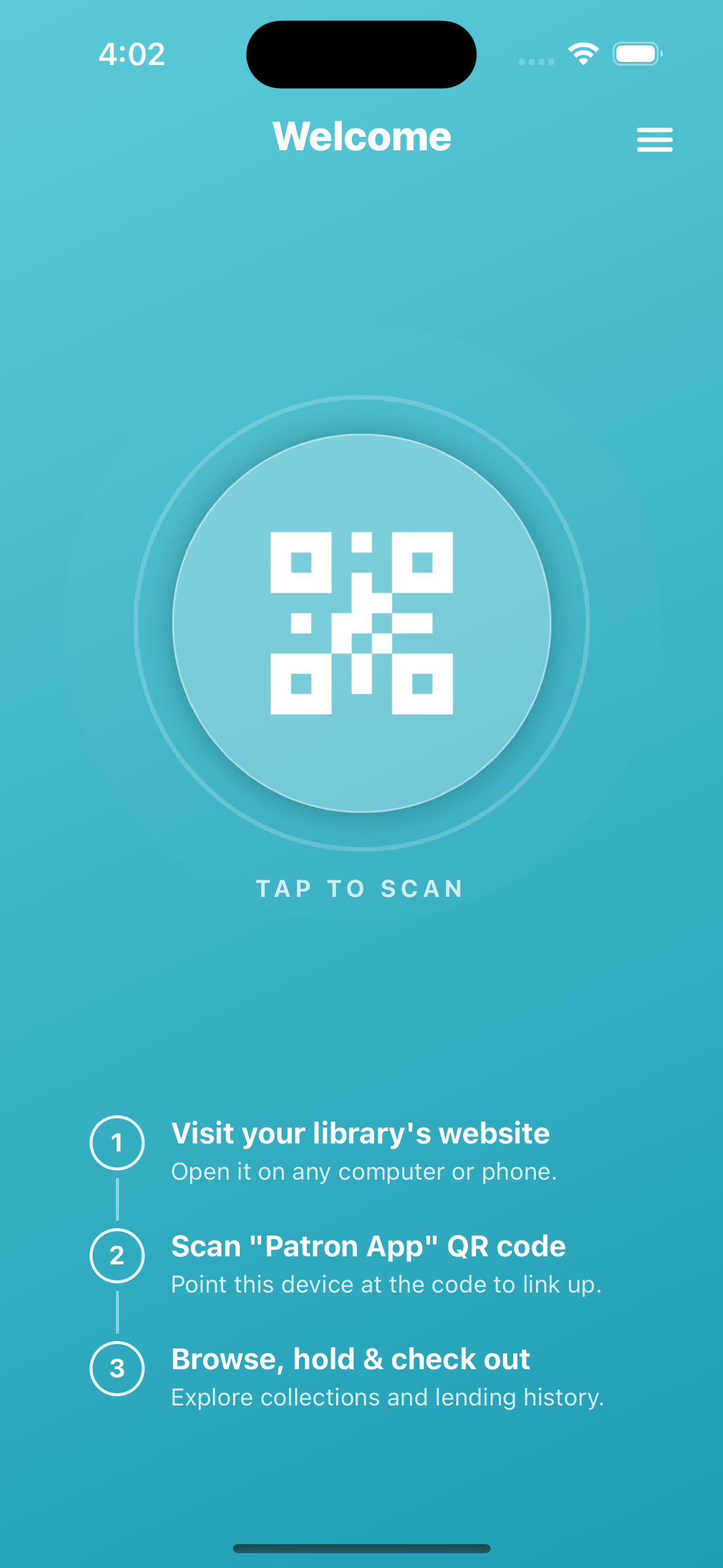
Tapping the QR icon opens the scanner. Once a valid library code is scanned, the app links to that library and remembers it for next time.
Patron Login
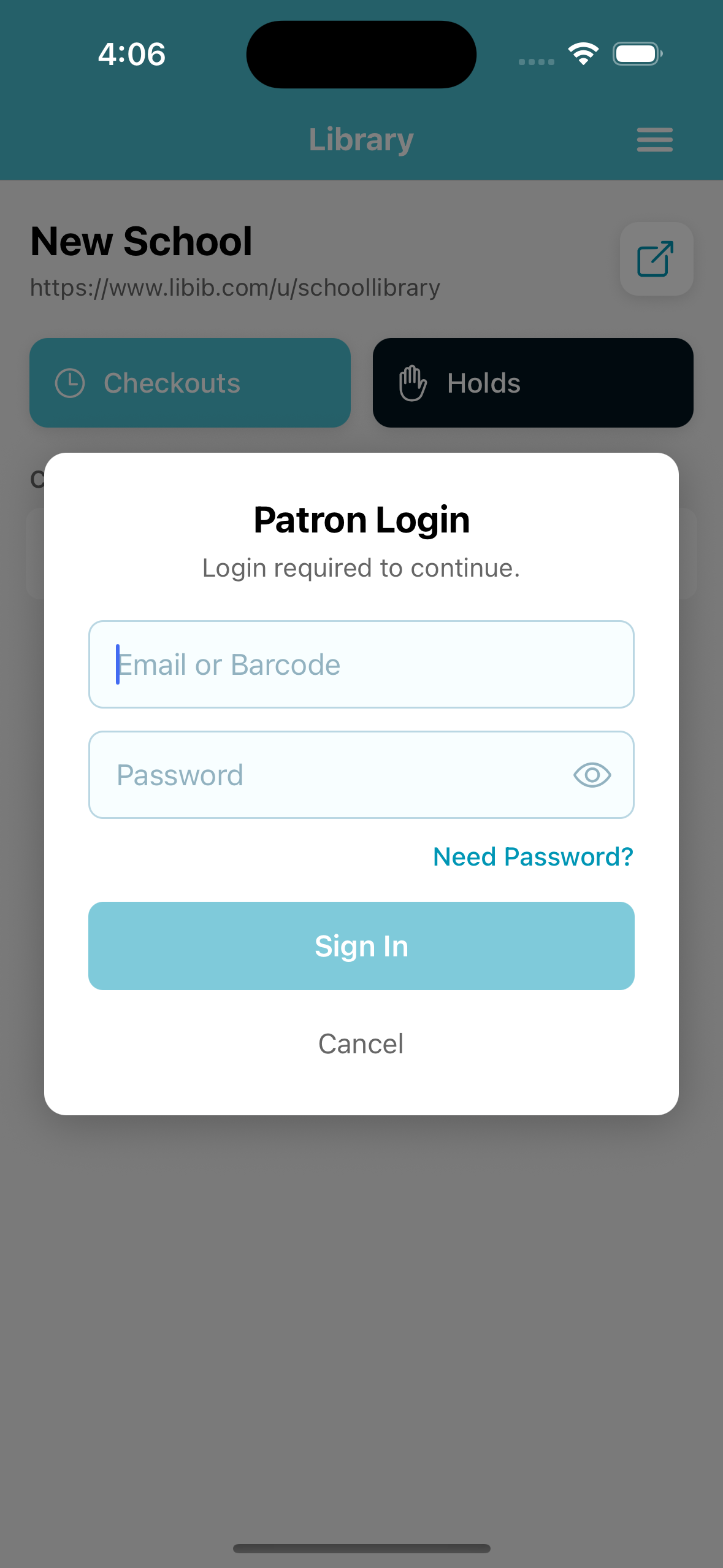
If the published library has Require Patron Login enabled, patrons are prompted to sign in after connecting. They can log in with their email or patron barcode plus a password.
- Need Password? — a patron with an email on file can request a temporary password, which is emailed to them.
INFO
If patron login is not required, patrons can browse the collections right away, but they'll still need to identify themselves before placing a hold or checking an item out.
Library Homepage
The home screen shows the library's name and public URL, along with the collections the patron has access to and a count of items in each. A toolbar at the bottom provides quick access to the main actions.
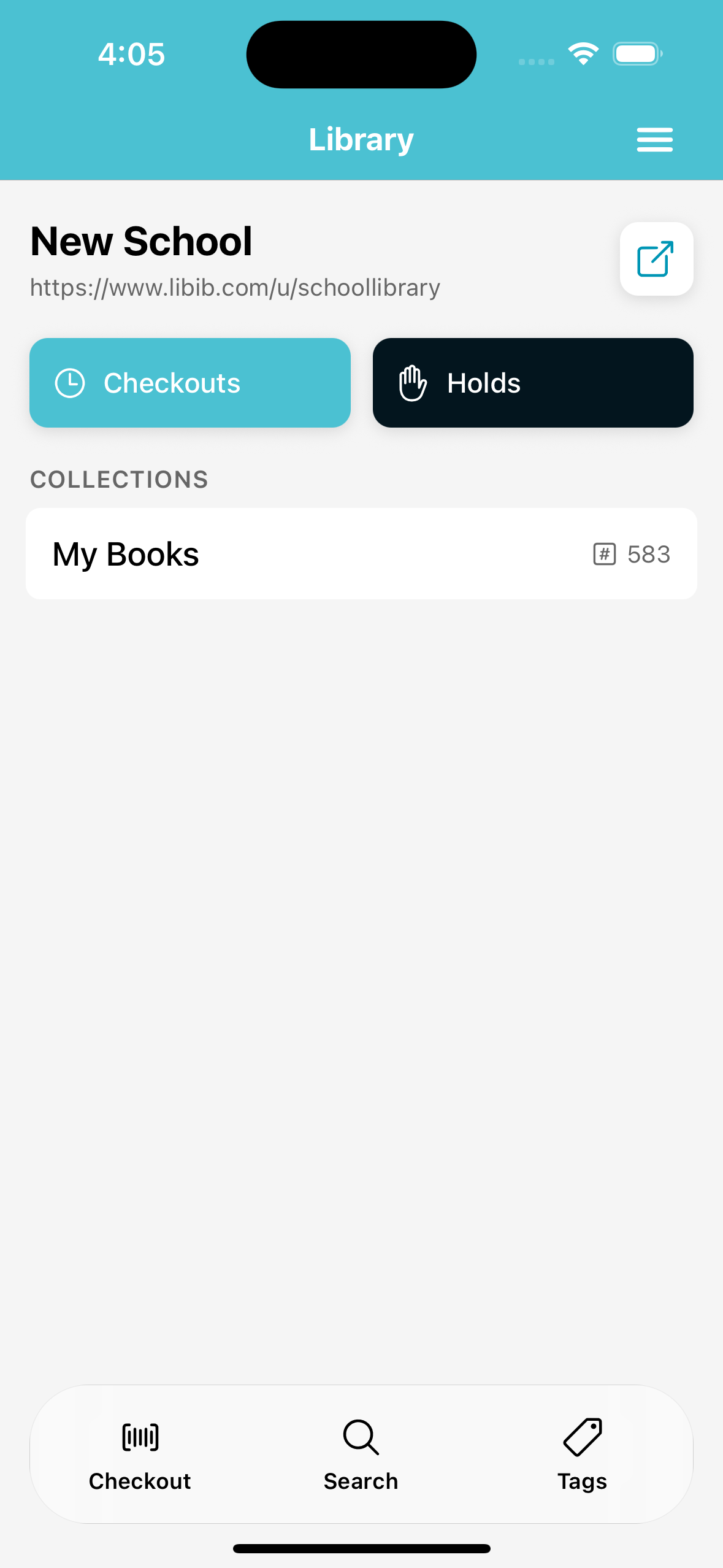
| Action | What it does |
|---|---|
| Collections | Tap a collection to browse its items, then tap an item to view its full details. |
| Checkout | Opens the scanner so a patron can check an available item out to themselves by scanning its barcode. Requires Allow Patron Self-checkouts enabled on Publish settings. |
| Search | Searches across the collections the patron has access to. Requires Display Search Bar enabled on Publish settings. |
| Tags | Browse items by tag. Requires Display Tags enabled on Publish settings. |
| Checkouts / Holds | Shortcuts to the logged in patron's checkouts and holds (see below). Requires Patron Account Page enabled on Publish settings. |
Holds & Self-Checkouts
From an item's details, a patron can:
- Place a hold — requires Allow Patron Holds enabled on Publish settings. Managers who have hold notifications turned on are emailed when a hold is placed.
- Check out — using the Checkout scanner to scan an available copy's barcode. Requires Allow Patron Self-checkouts enabled on Publish settings. Items already checked out, or in collections where these actions are disabled, can't be held or checked out.
When the Patron Account Page is enabled, patrons can review and manage their own lending activity.
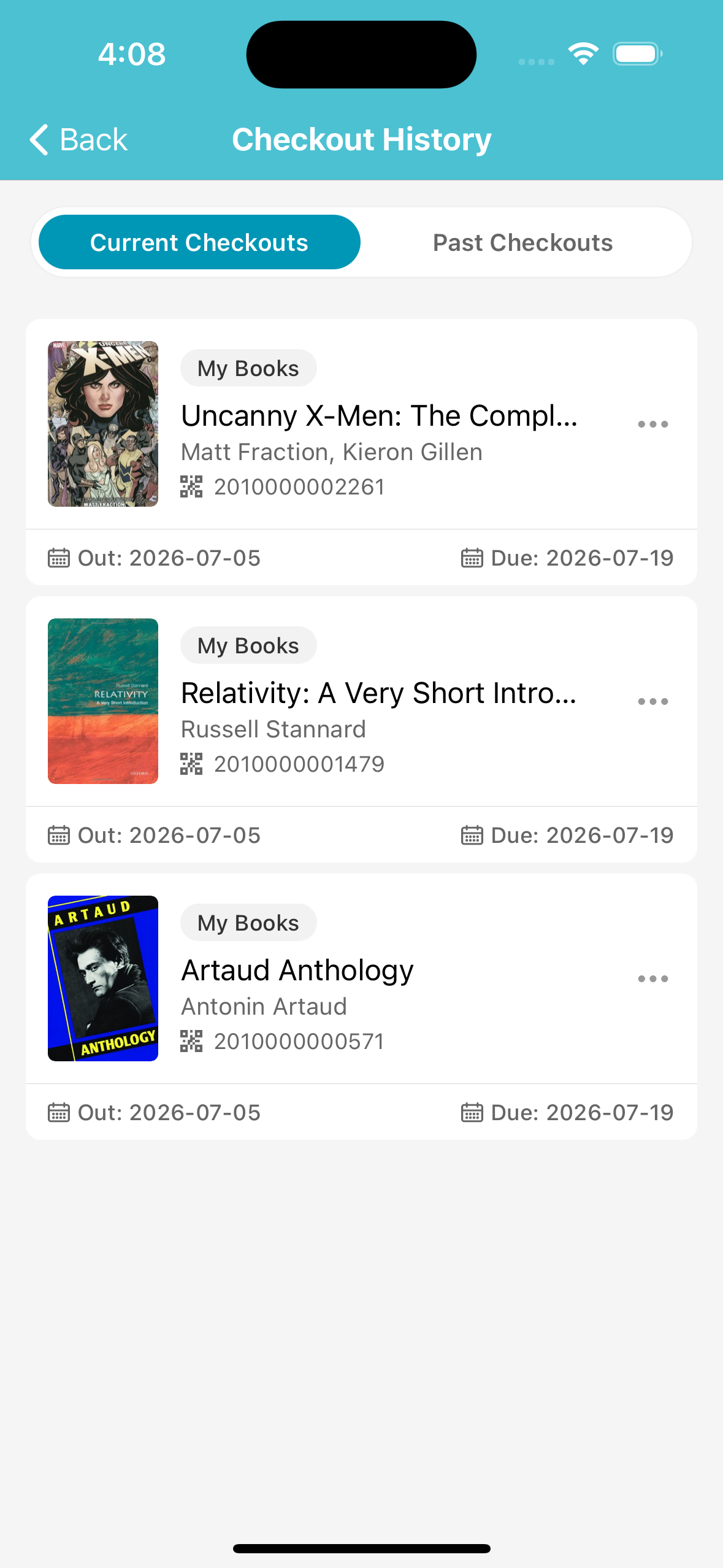
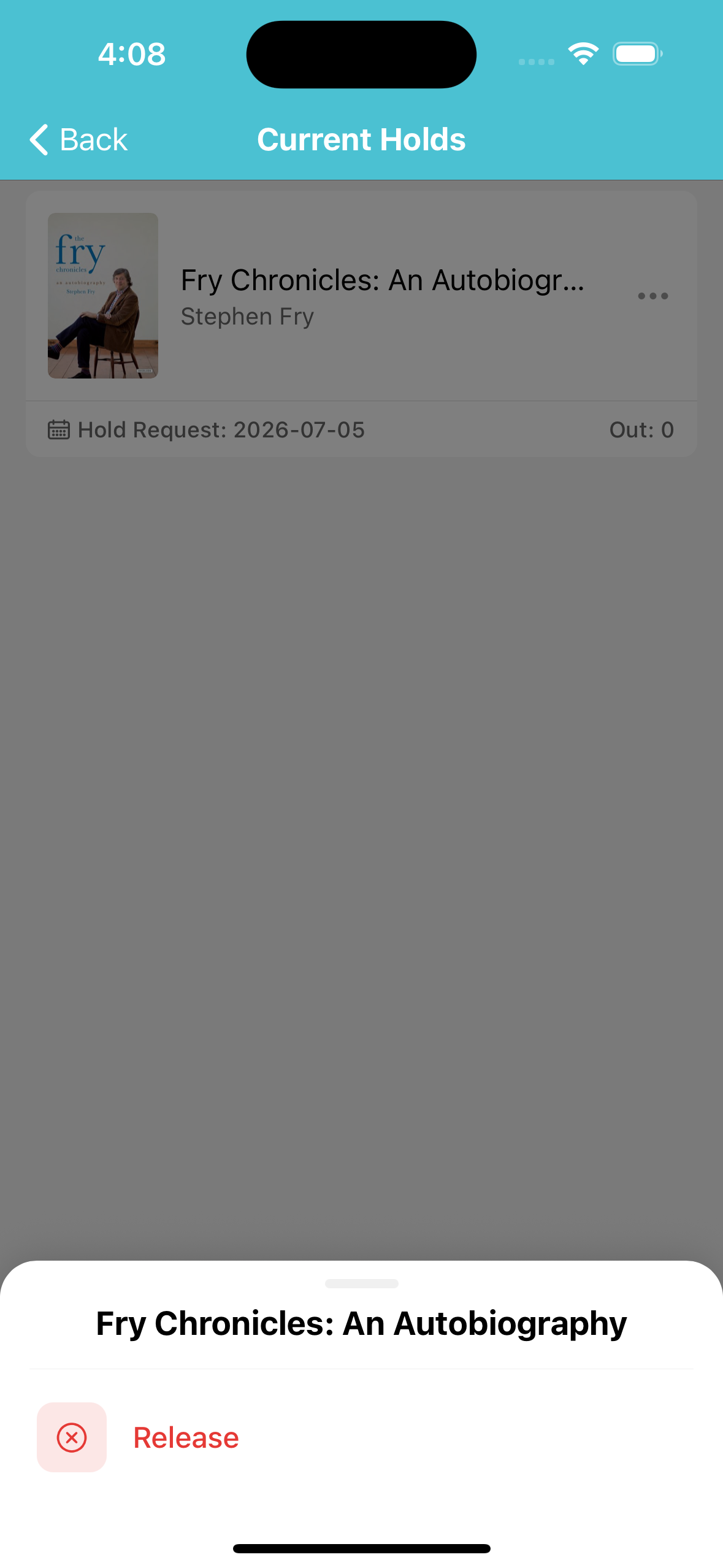
- Checkouts — view current checkouts with their out and due dates, plus a history of past checkouts.
- Holds — view active holds and release any they no longer want.
- Renew — extend a checkout's due date. Requires Patron Self-renewals enabled on Publish settings. Items are limited to a single renewal.
Managing Libraries / Profiles
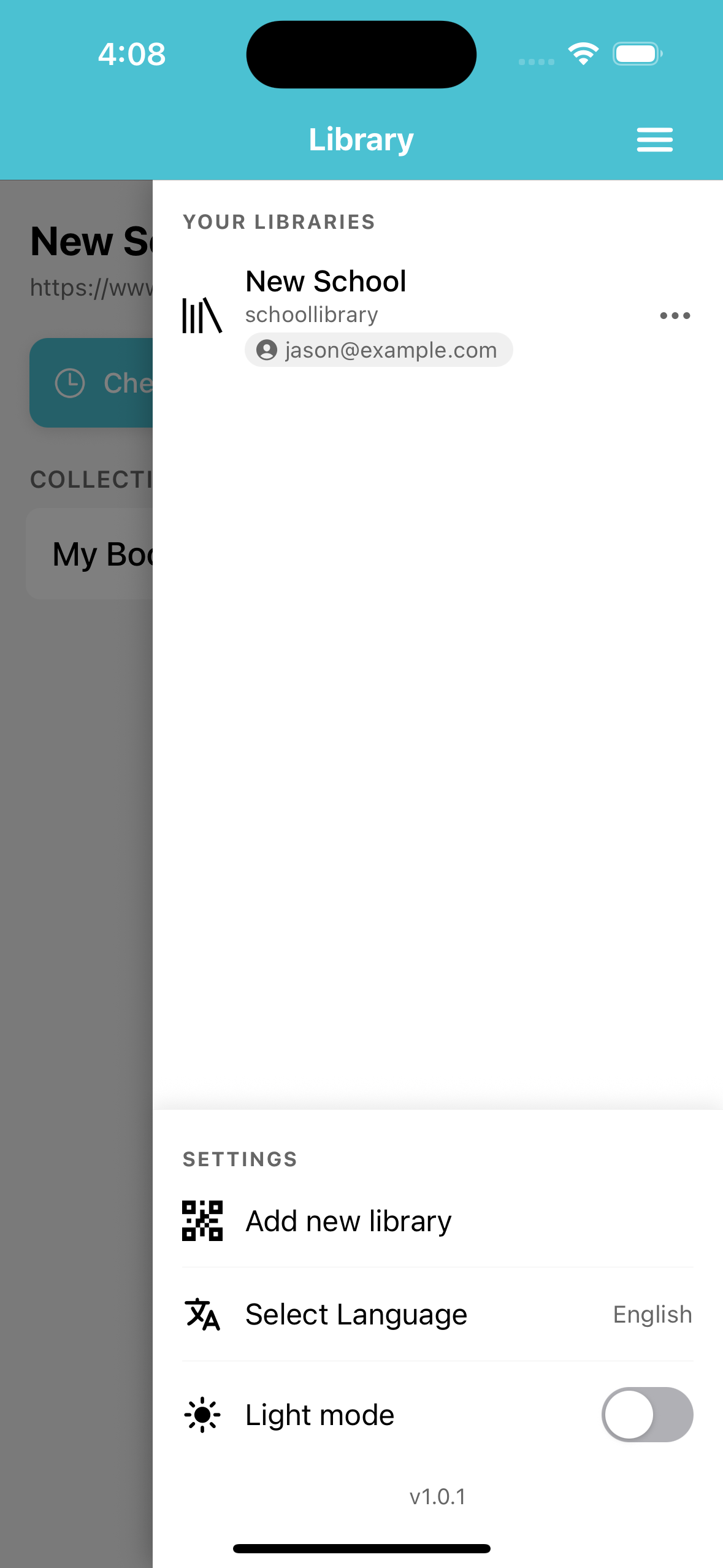
The menu (top-right) lists every library a patron has connected. A patron can belong to more than one library — for example, a student connected to several classroom libraries — and switch between them here.
Menu Options
Each connected library has an options (•••) menu whose actions depend on the library's settings and whether a patron is signed in:
- Edit Patron — the logged-in patron can update their own name, email, phone, and notification emails, and change their password. Available when a patron is signed in and both Patron Account Page and Patron Account Editing are enabled on Publish settings.
- Logout Patron — signs the current patron out of that library. Offered only when the library does not have Require Patron Login enabled — otherwise the patron would be unable to continue using it.
- Remove Library — disconnects the library from the app, removing it and any saved patron login from the device. It can be re-added later by scanning its QR code again.
When no patron is signed in yet, the menu instead offers a Login Patron option for libraries with Patron Account Page enabled.
App Settings
The menu also includes:
- Add new library — scan another library's QR code to connect it.
- Select Language — choose the app's display language.
- Light / Dark mode — toggle the app's appearance.
TIP
Each connected library requires a separate login.